
Simplify your hiring
JobScore is a hiring headquarters for your entire team designed by recruiters for recruiters.
Easy to Use | Flexible | Customizable

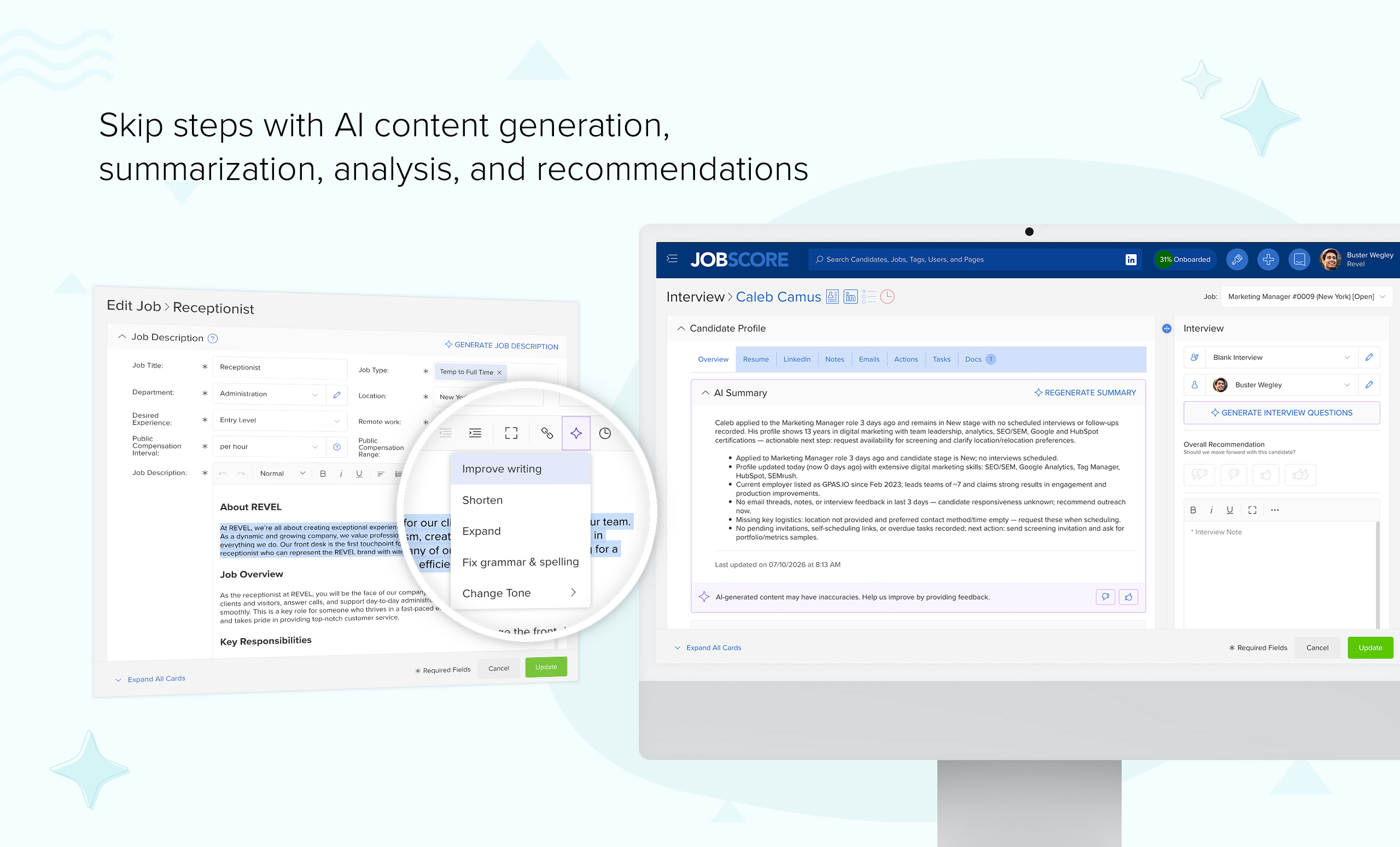
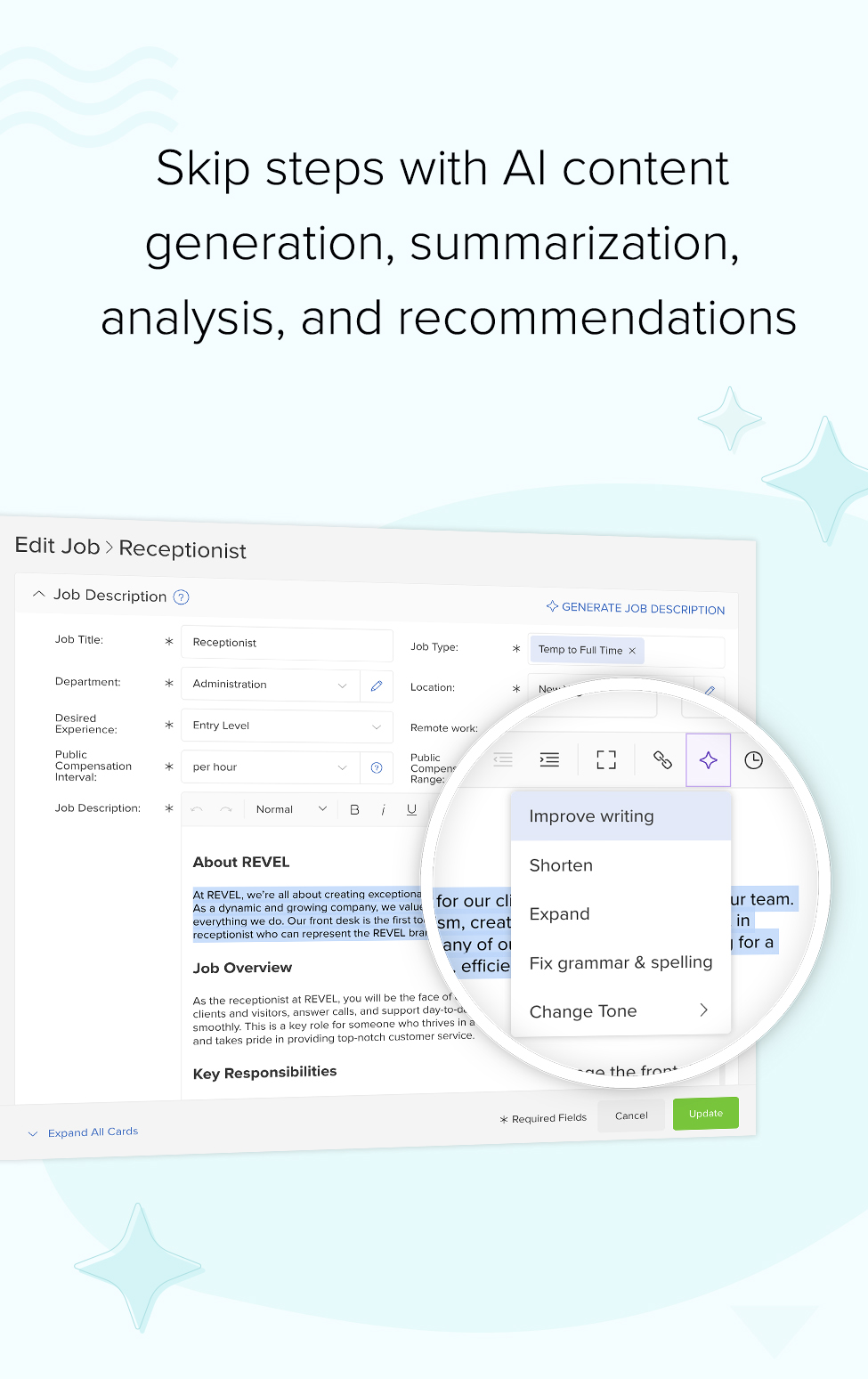
Customers love their recruiting results
But don’t take our word for it, take it from them
Edmunds saves 2,000+ hours per year with JobScore
JobScore is incredibly easy for anyone to jump in and use– it boosts our efficiency because we don’t have to train interviewers and hiring managers to use it.”


Professional Plastics eliminates 100s of hours of work in 3 months
We were doing everything manually, trying to stay on top of stuff in email, and struggling trying to use job boards like Indeed and LinkedIn to track applicants. It wasn’t working.”


JobScore helps 1904labs win the war for technical talent
Our goal at 1904labs is to be a company people actively want to work for. JobScore helps make that vision a reality.”


Spokeo doubles recruiting throughput with the same team
We were looking very deeply at overall recruiting value…we wanted data that would help us adjust and course-correct and JobScore delivers.”


Avispa cuts talent acquisition costs by 40% with JobScore
Our previous ATS was feature-rich but it was so complicated that people didn’t use it. JobScore is intuitive and user-friendly, so our recruiters actually use it, and we realize all its benefits.”


Built for everyone on your team
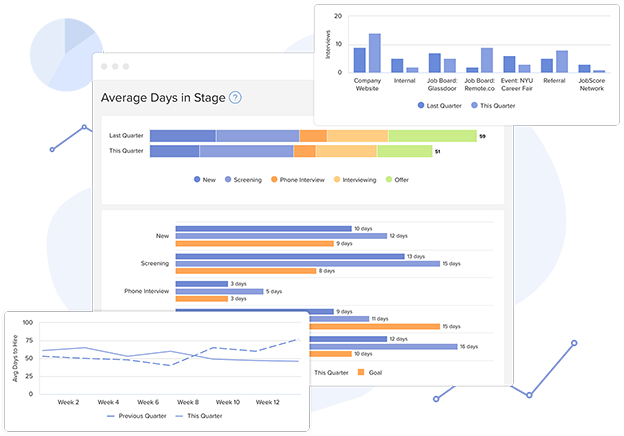
Plan, measure, and manage
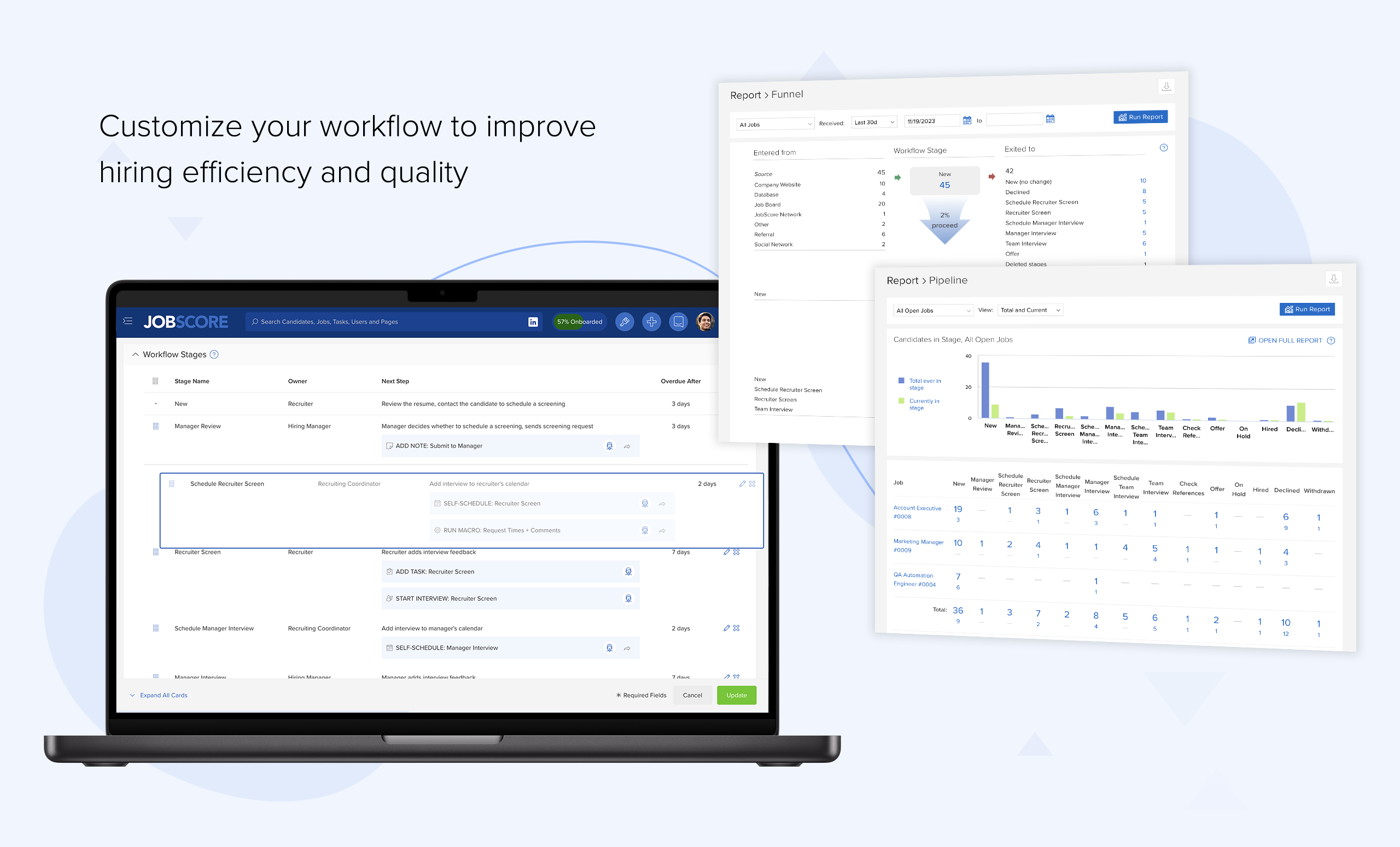
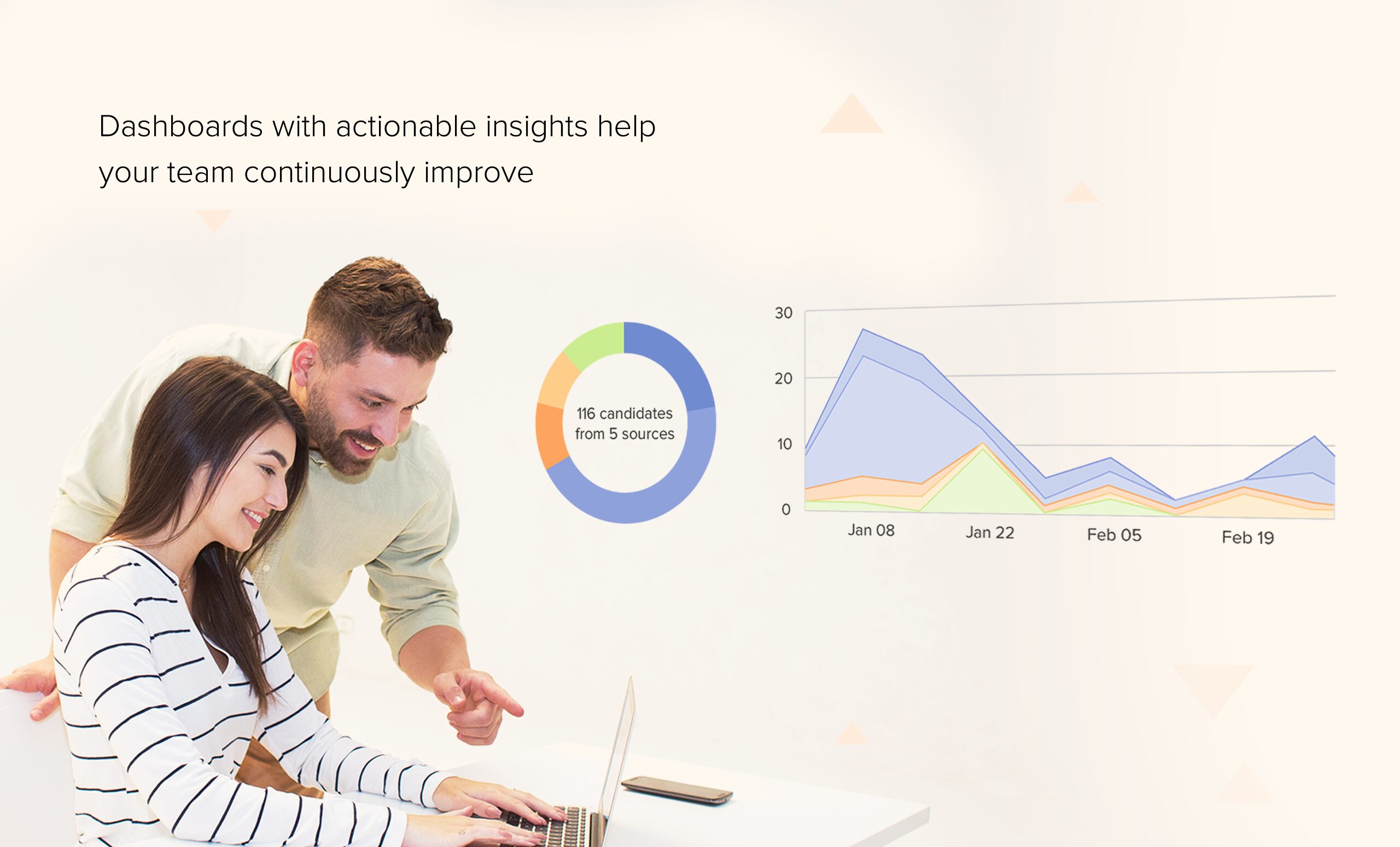
Work the way you want, establish service-level agreements, control employee access, and make data-driven decisions using customizable dashboards & analytics
Improve Efficiency
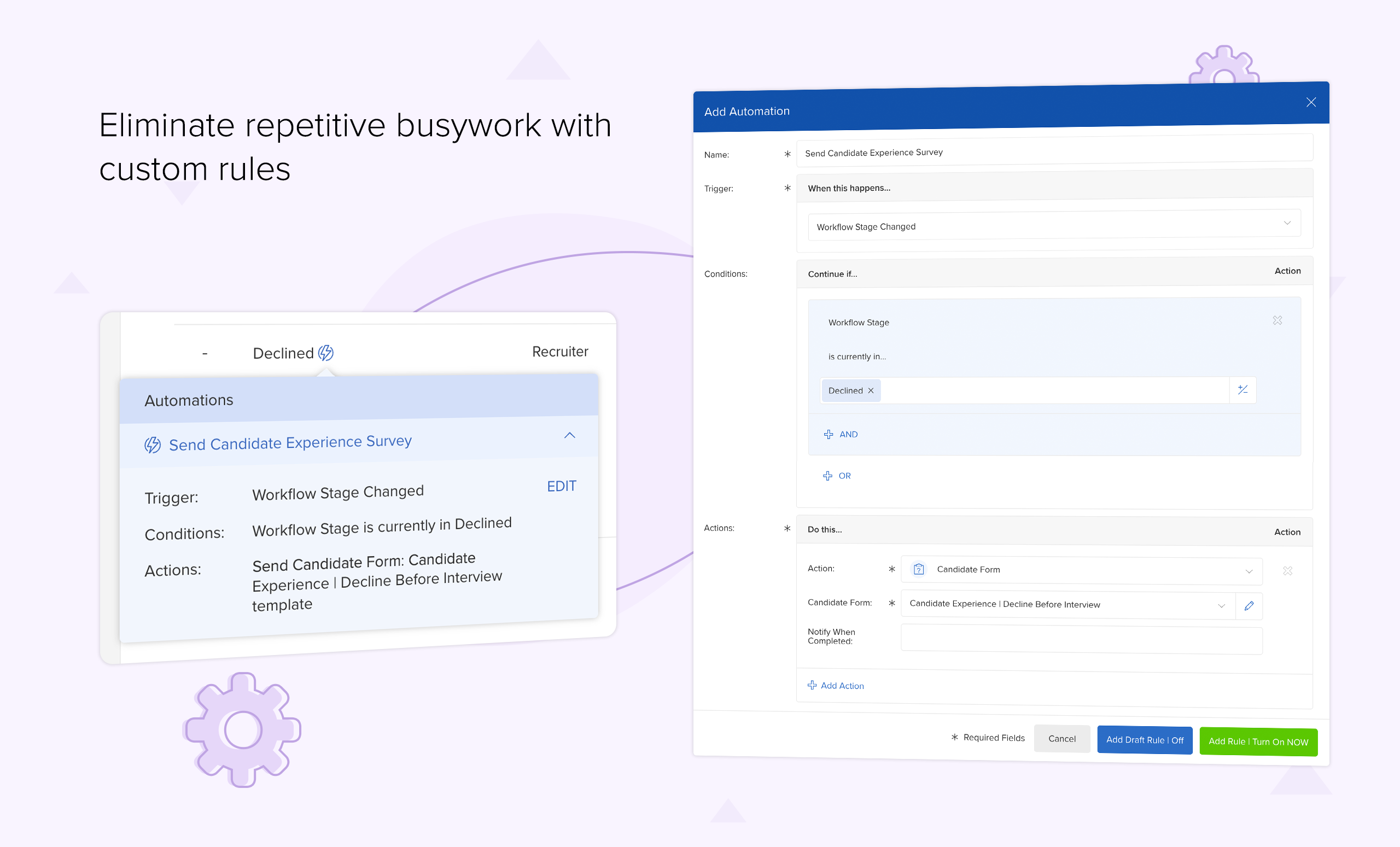
Make your entire team wildly productive by eliminating time-consuming, manual sourcing, scheduling, screening, and reporting tasks.
Engage and Impress Everyone
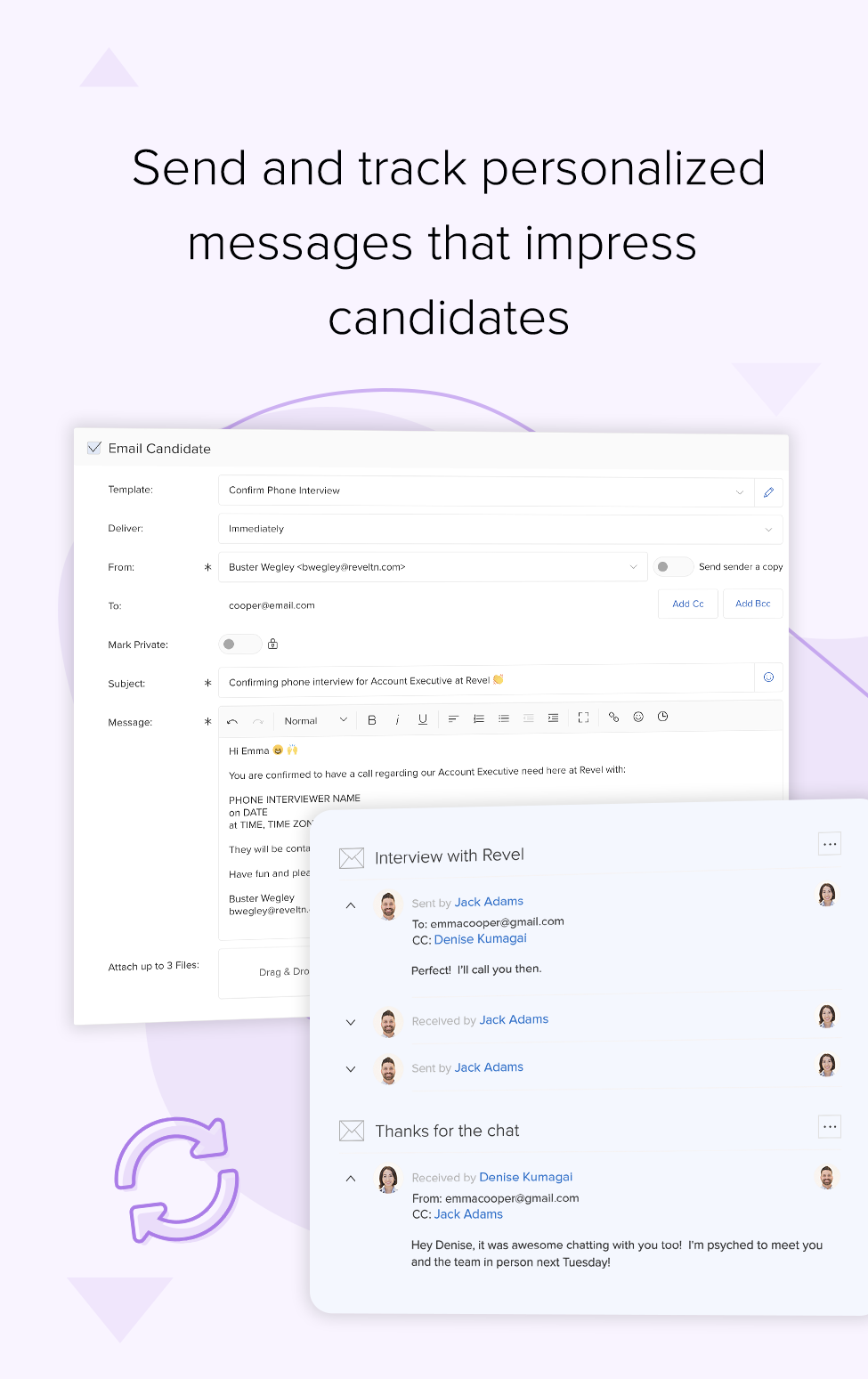
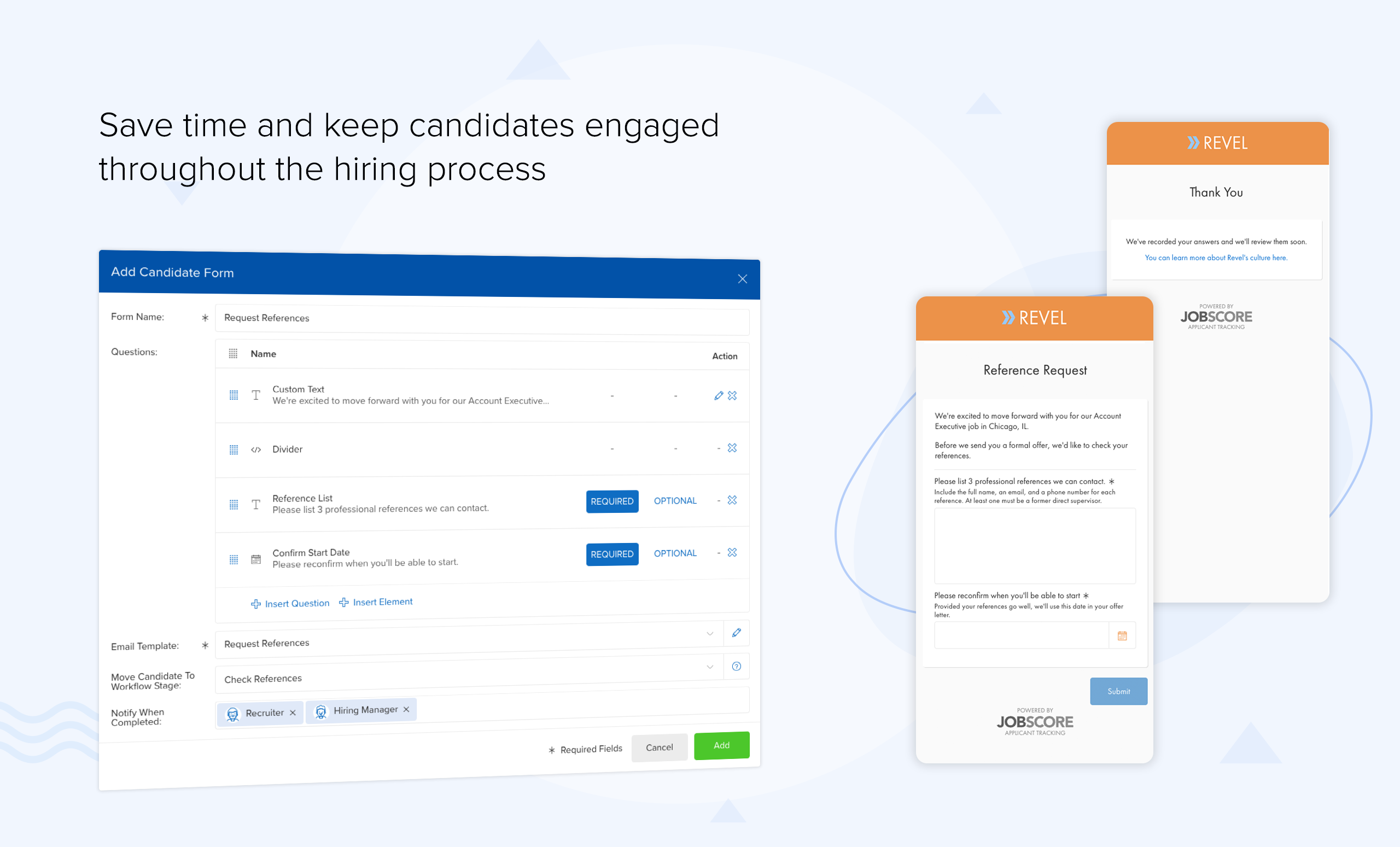
Delight candidates, managers, recruiters, and interviewers with tailored personalized experiences. Drive adoption with onboarding checklists.
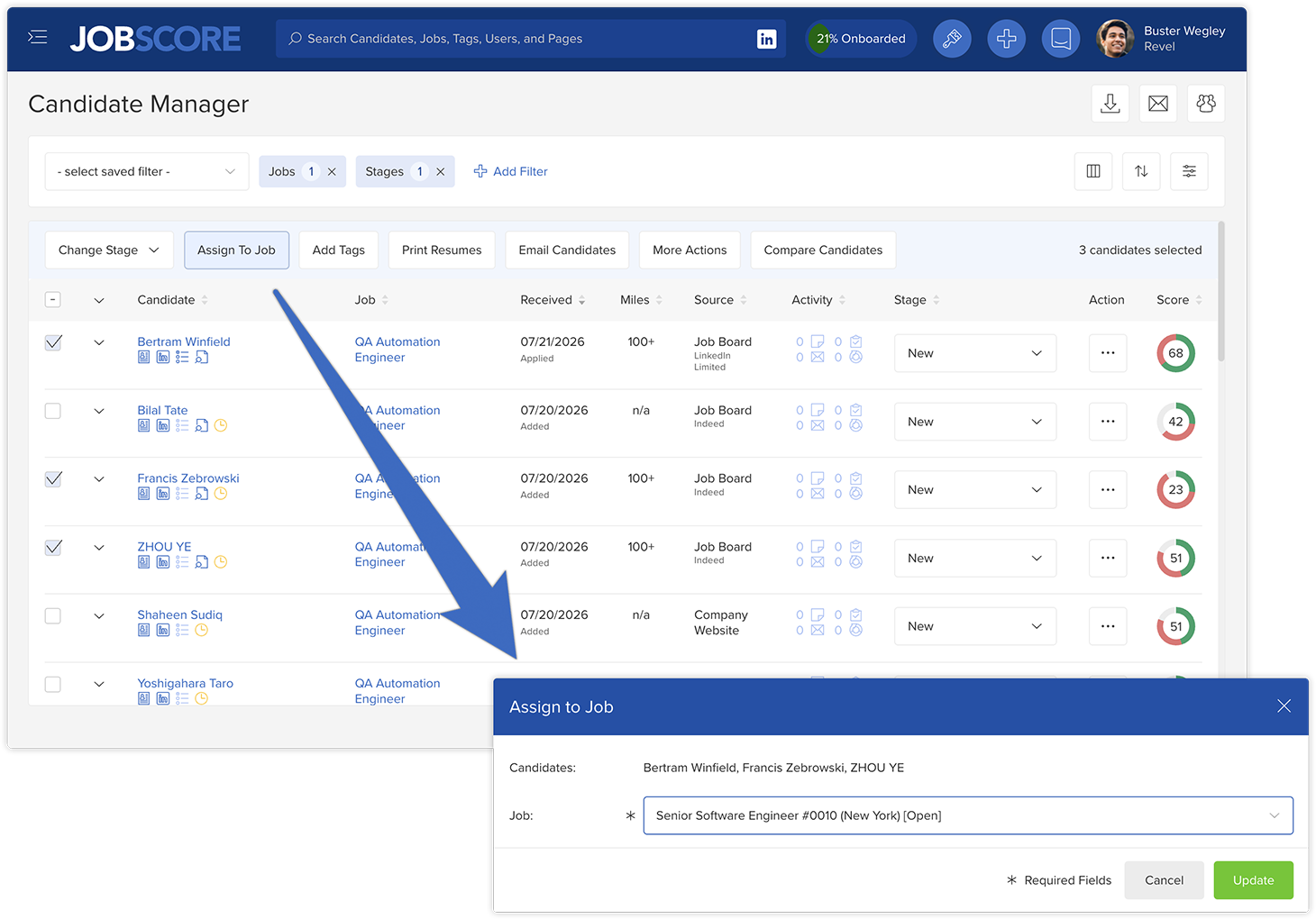
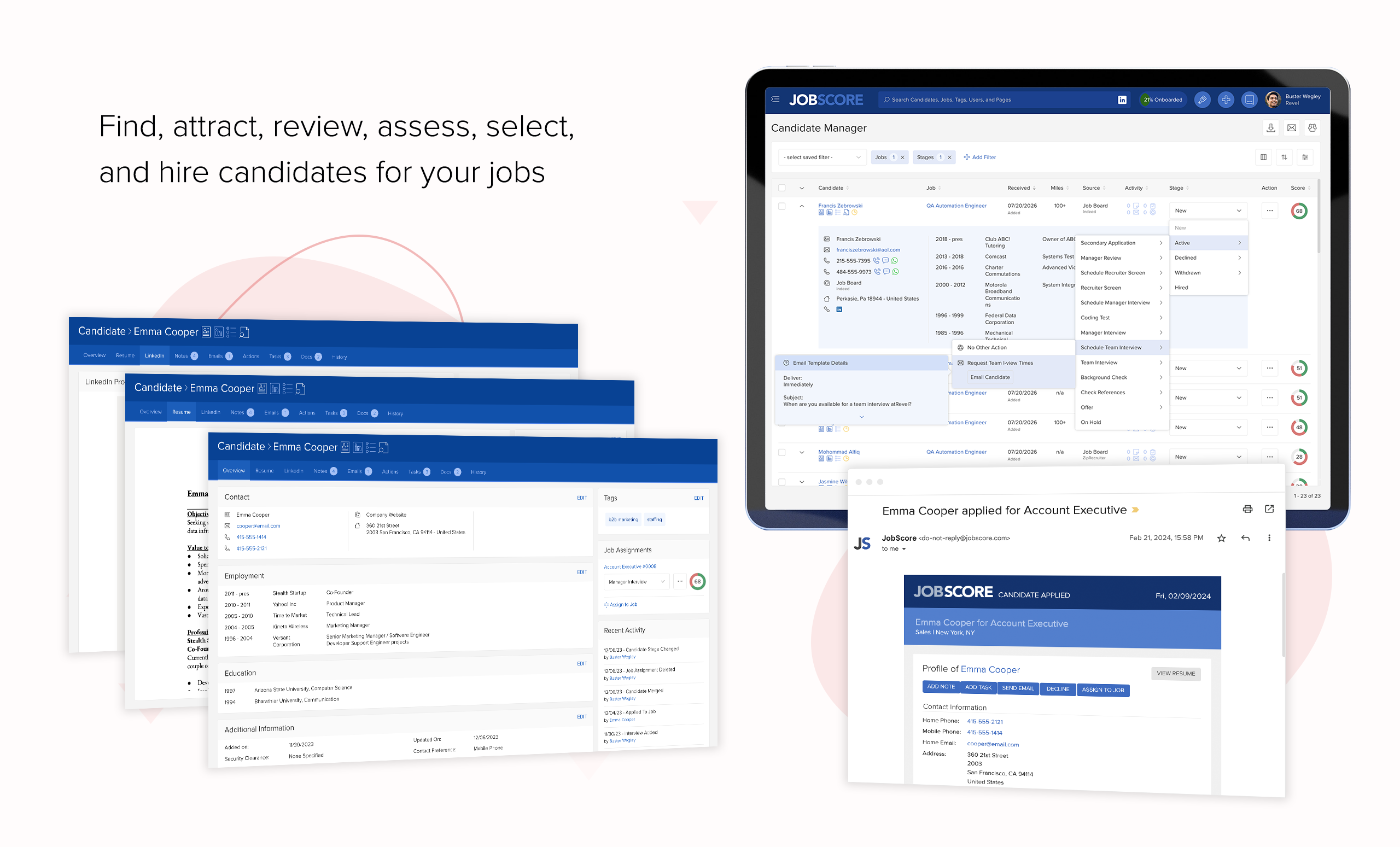
Click less and recruit more
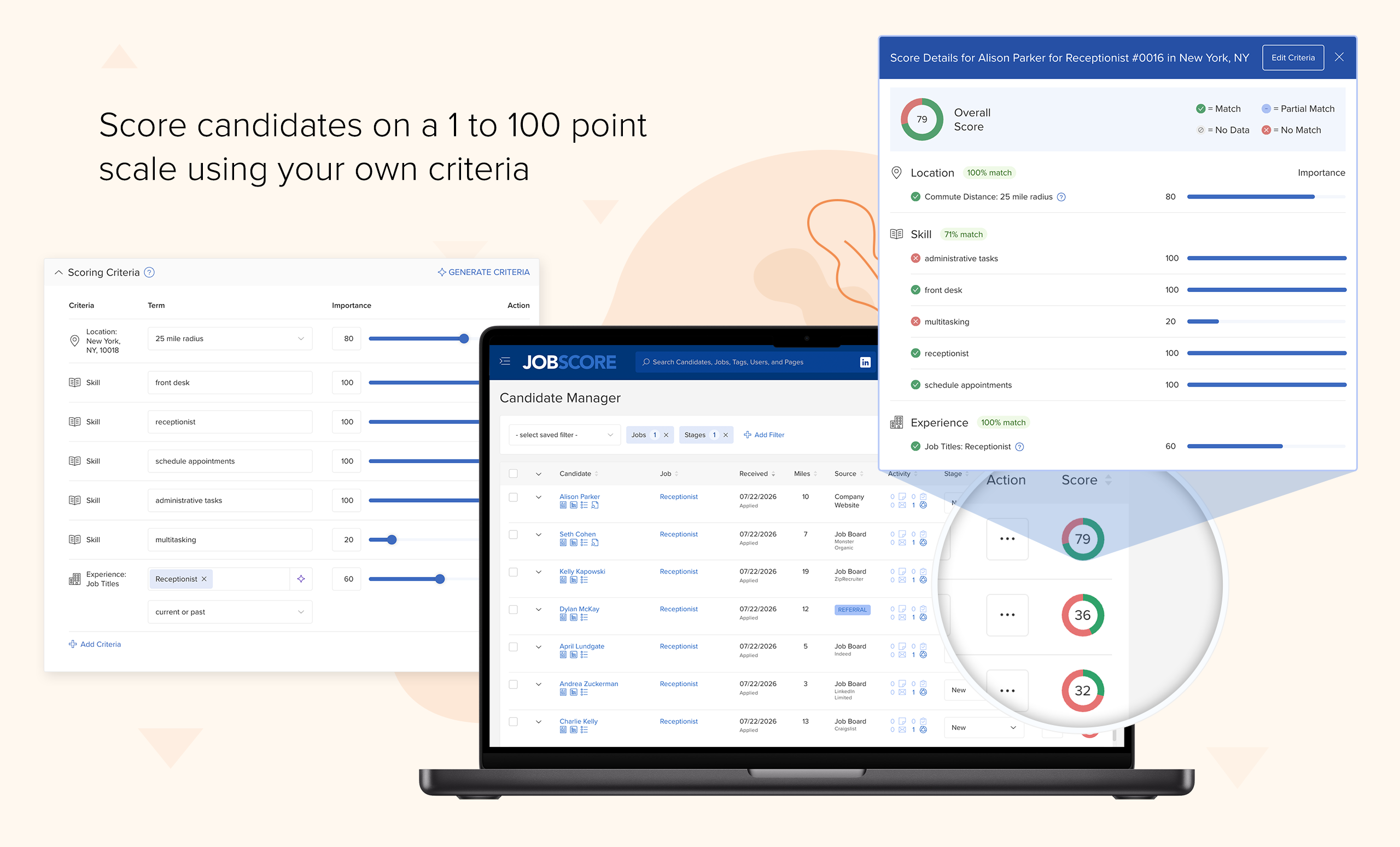
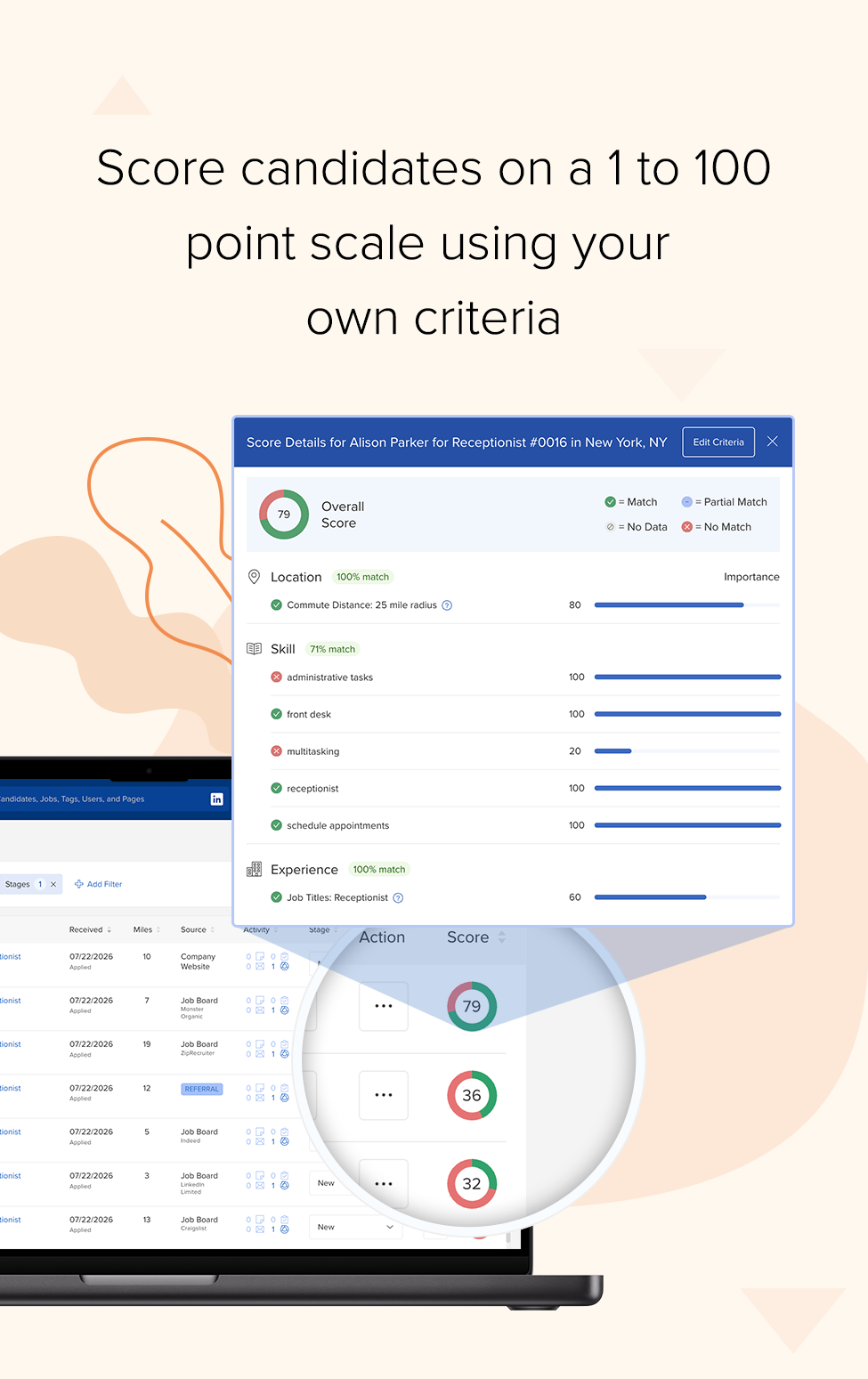
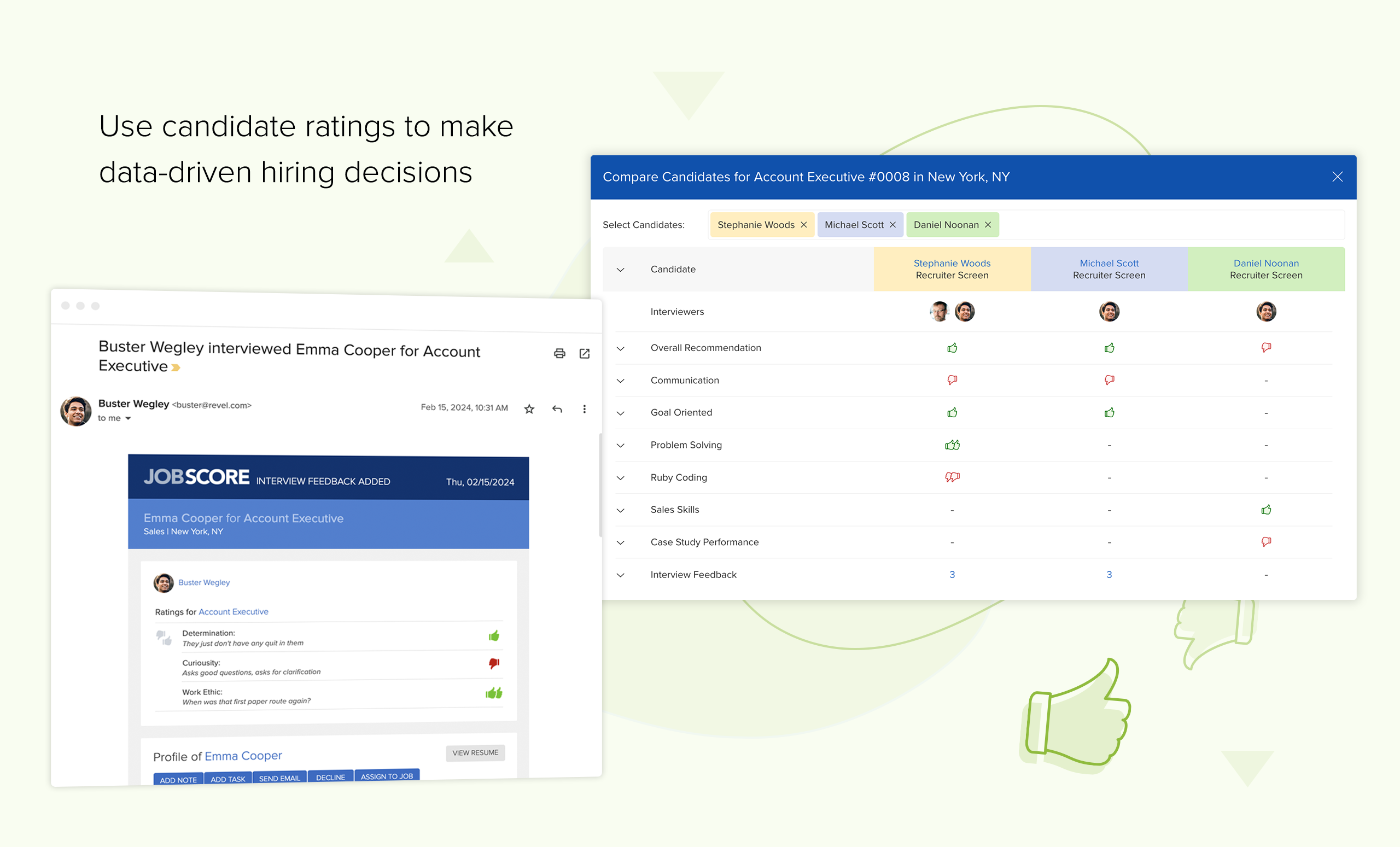
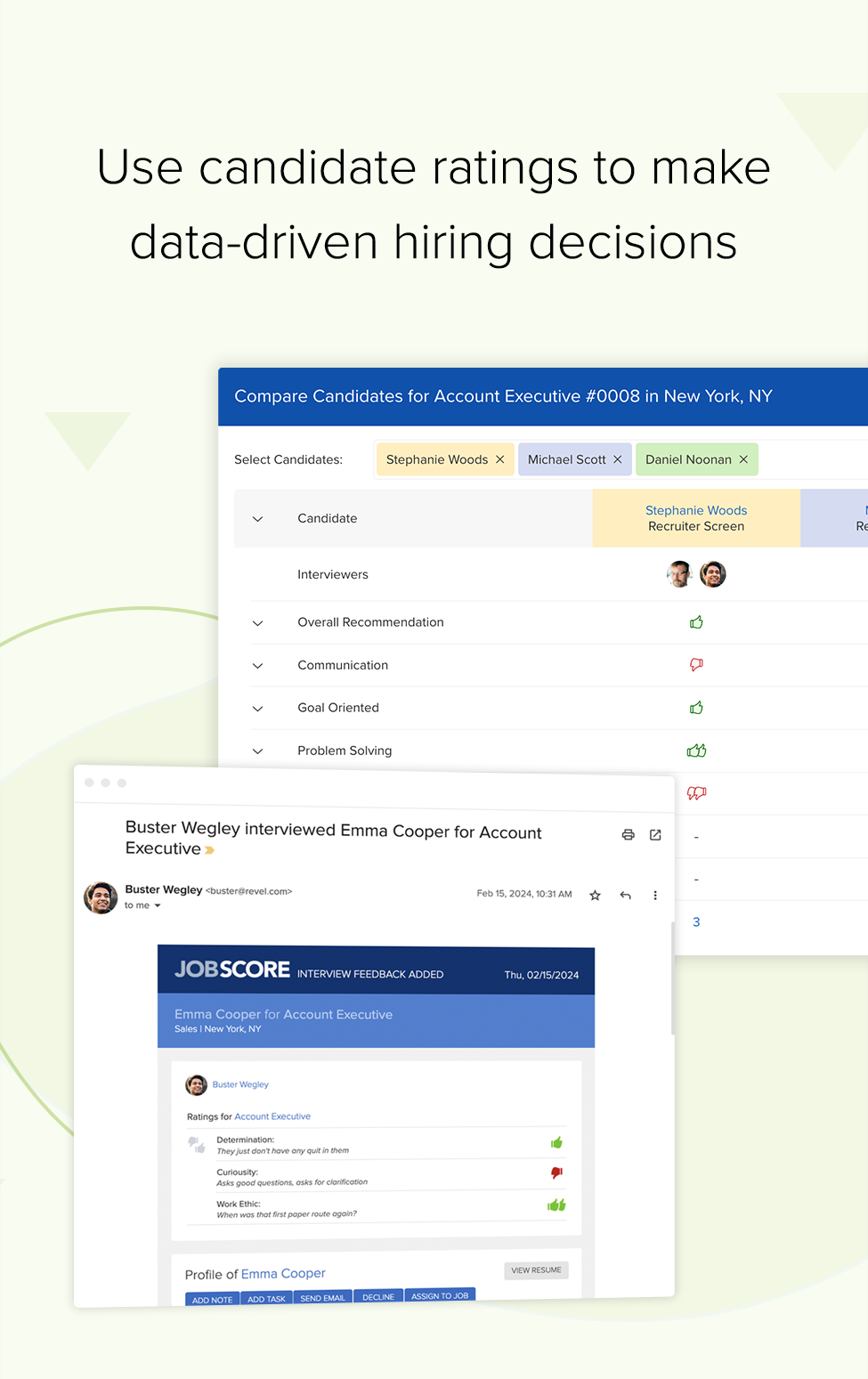
Powerful automation frees you up to do more strategic, impactful work. Candidate scoring zeros in on who’s qualified.
Low-effort candidate pipeline
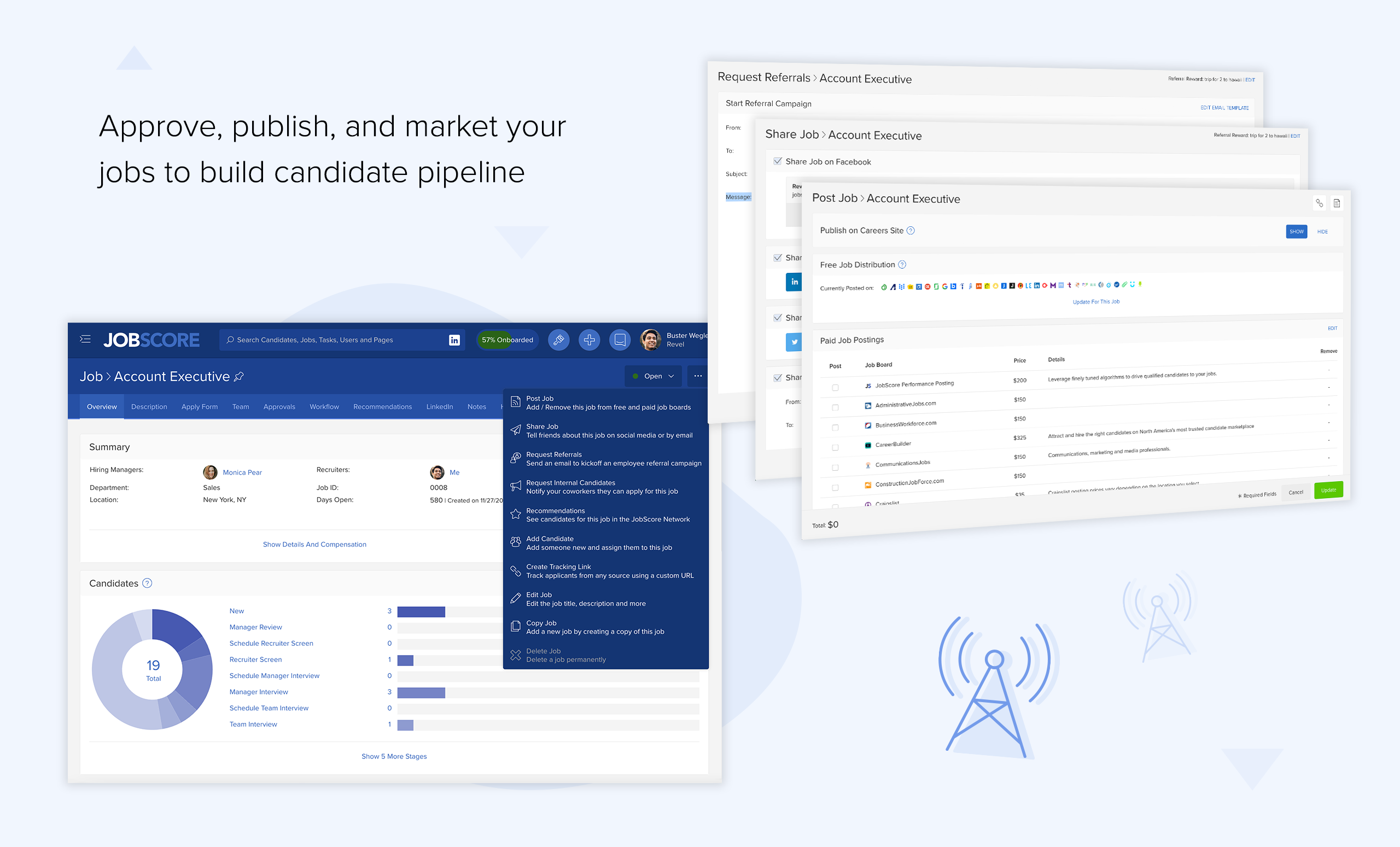
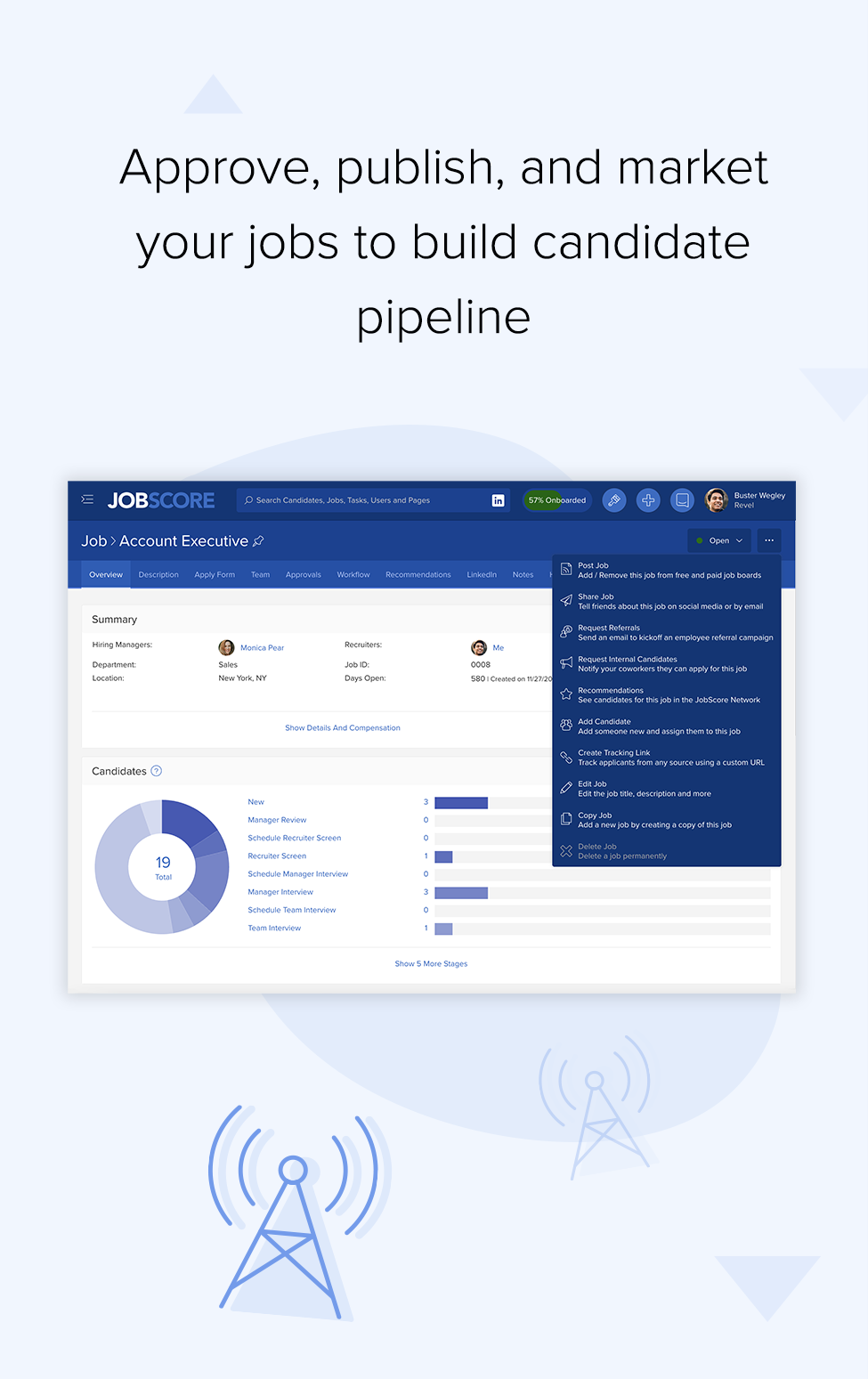
Execute every tactic: post on job boards, employee referral campaigns, rediscover talent, manage search firms, and more.
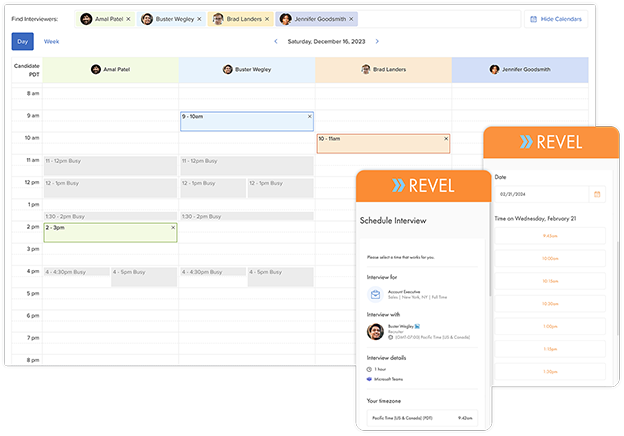
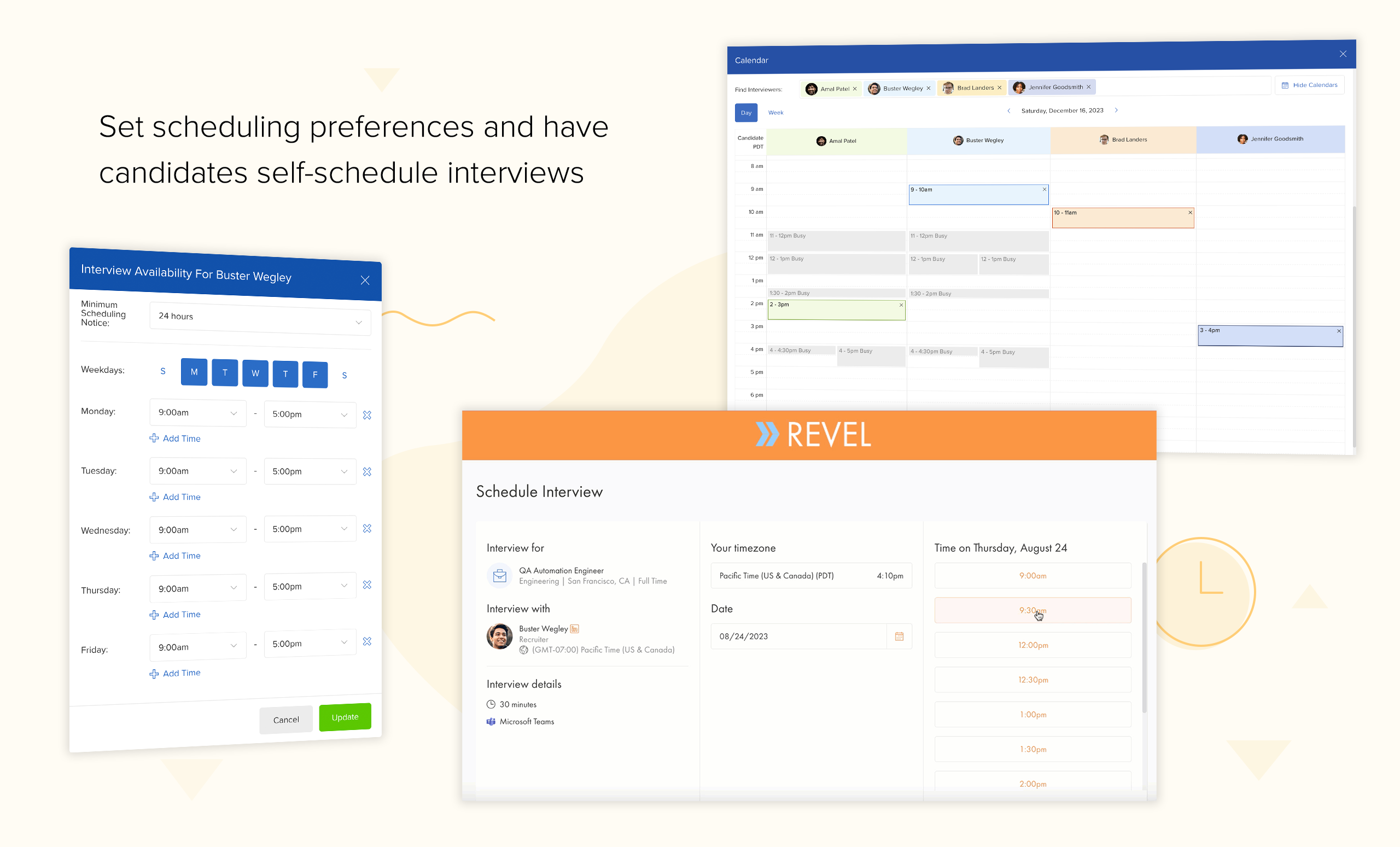
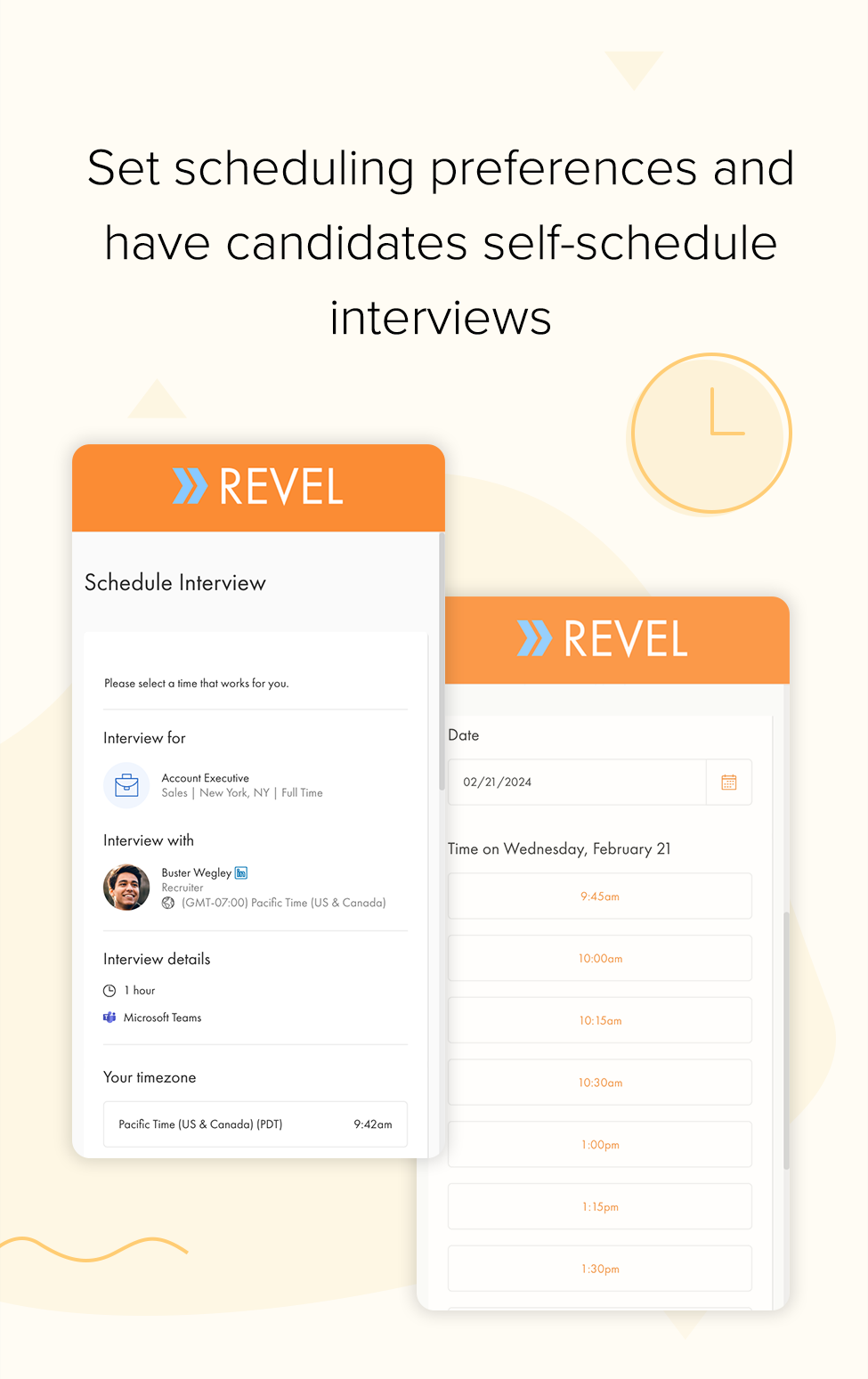
Self-schedule interviews
Send scheduling requests with 1 click. Monitor scheduling status. Automatically send interview reminders.
Master calendar Tetris
Set preferred interviewers and scorecards per job. Easily juggle multiple people’s free/busy. Send perfect invites with complete interview panel data.
Run reports with 1 click
Stop spending hours updating spreadsheets. Save and bookmark self-service reports & share them in no time flat.
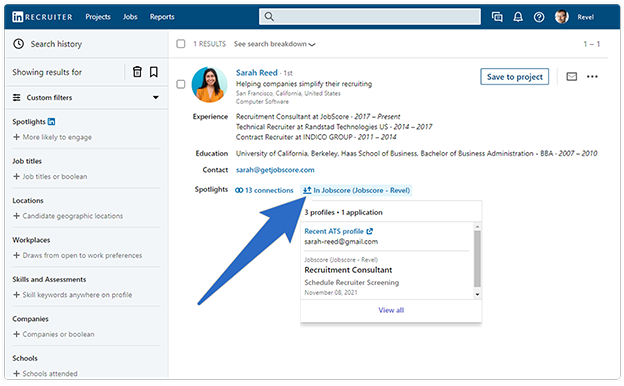
Search, tag, and filter
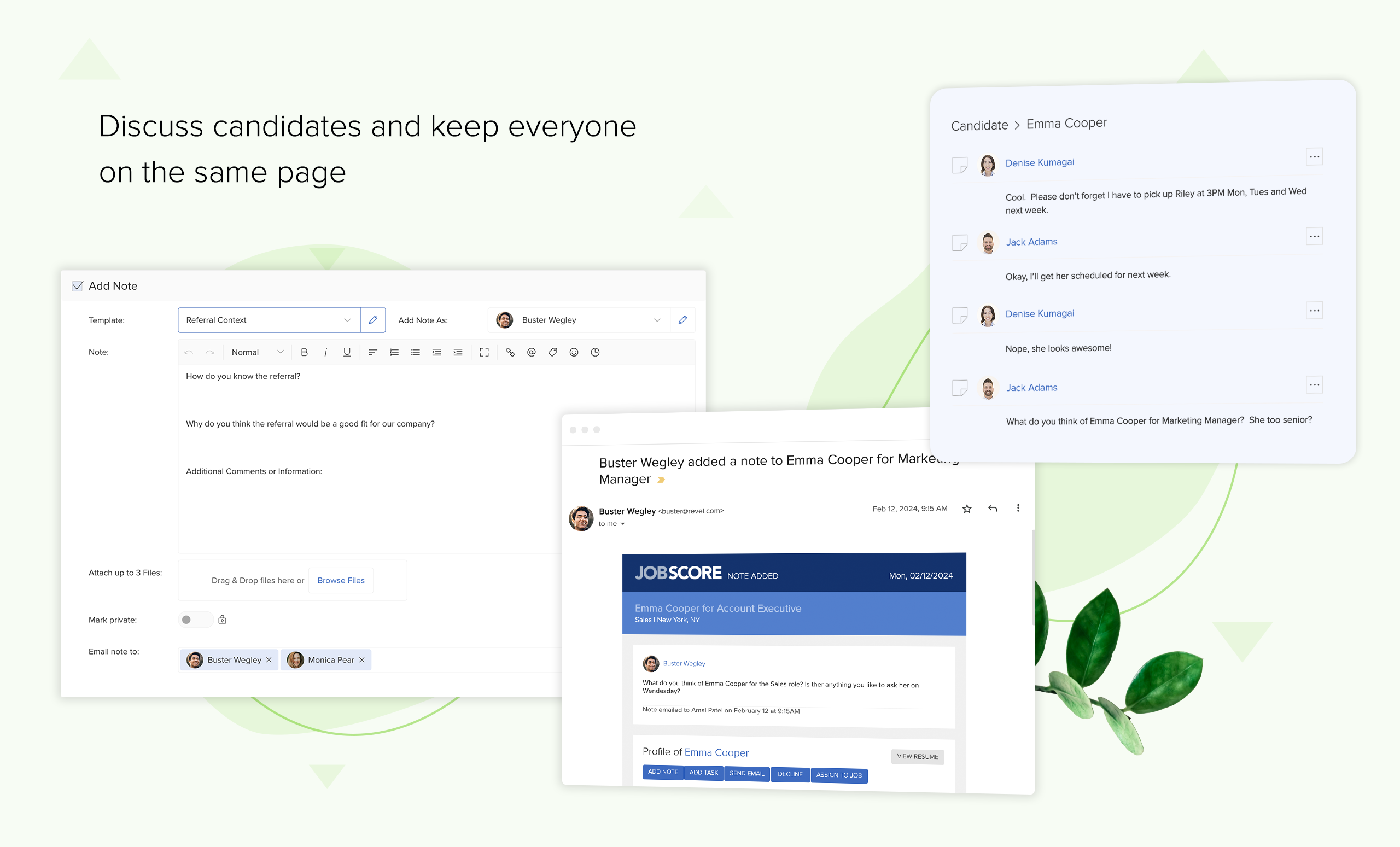
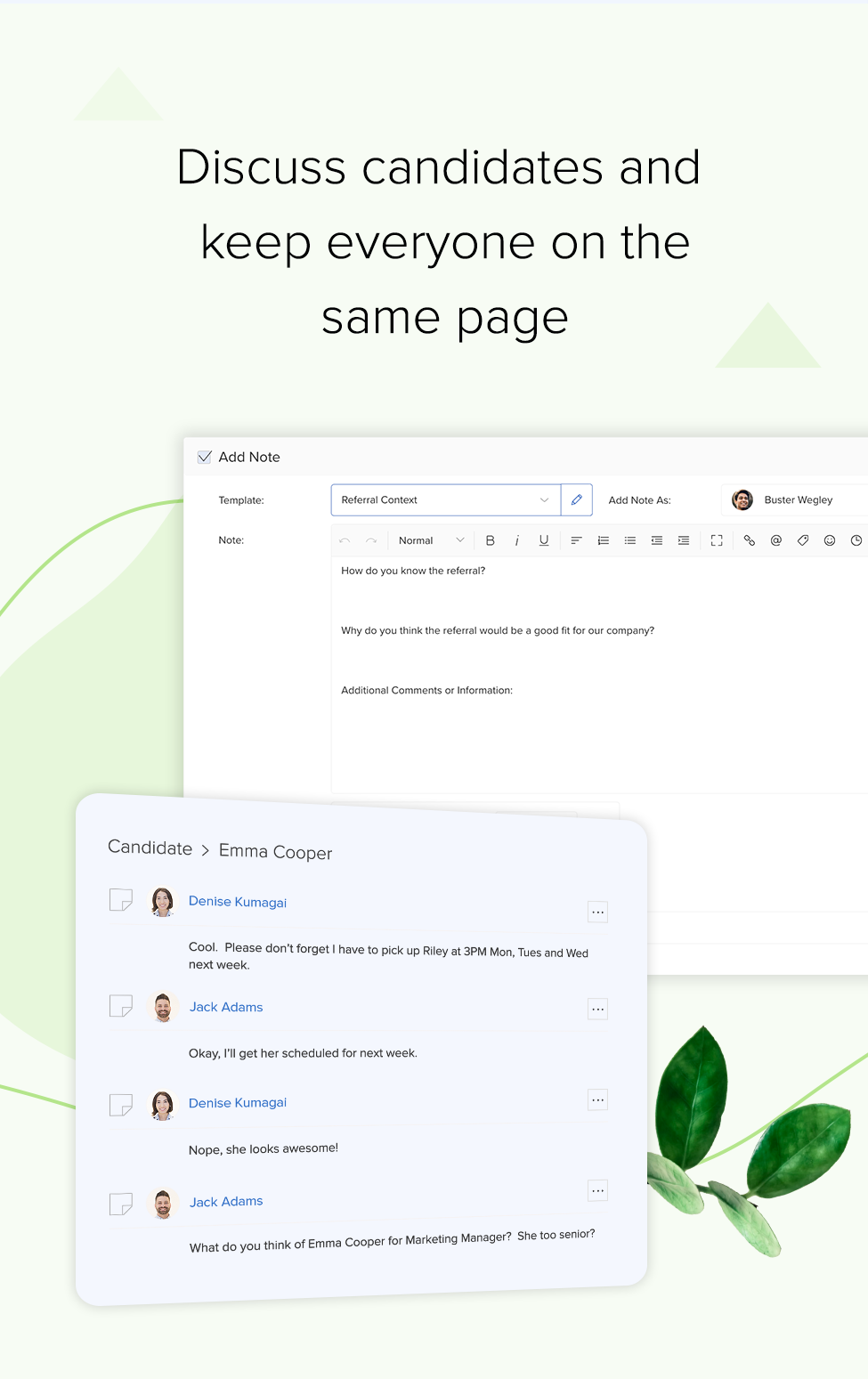
Search candidates and notes with boolean operators. Save searches. Score candidates. Add and edit tags.
LinkedIn Recruiter System Connect
Synchronize data between LinkedIn Recruiter and JobScore. Save up to 3 hours a week by streamlining workflows.
Integrate any tool
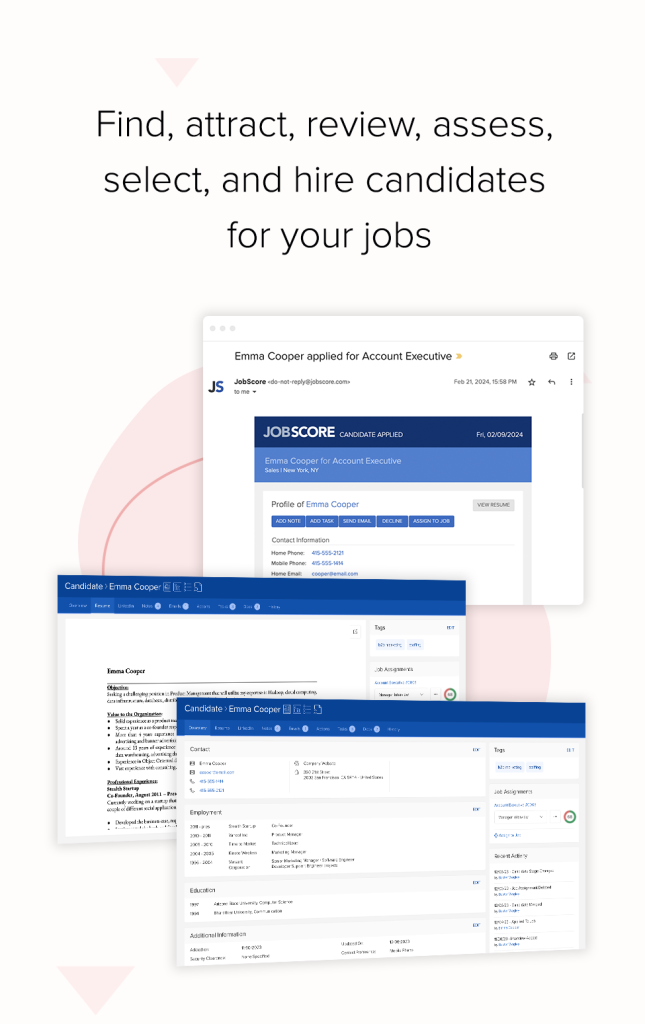
Add resumes one by one, in bulk, or by simply sending an email. Integrate 3rd party sourcing tools using the JobScore Hire API.
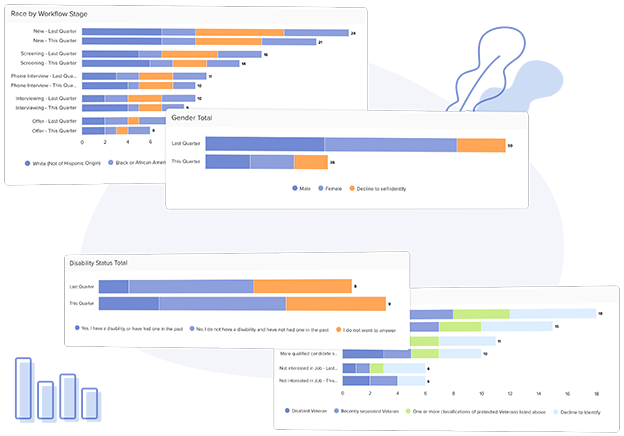
DE&I, compliance, & internal mobility
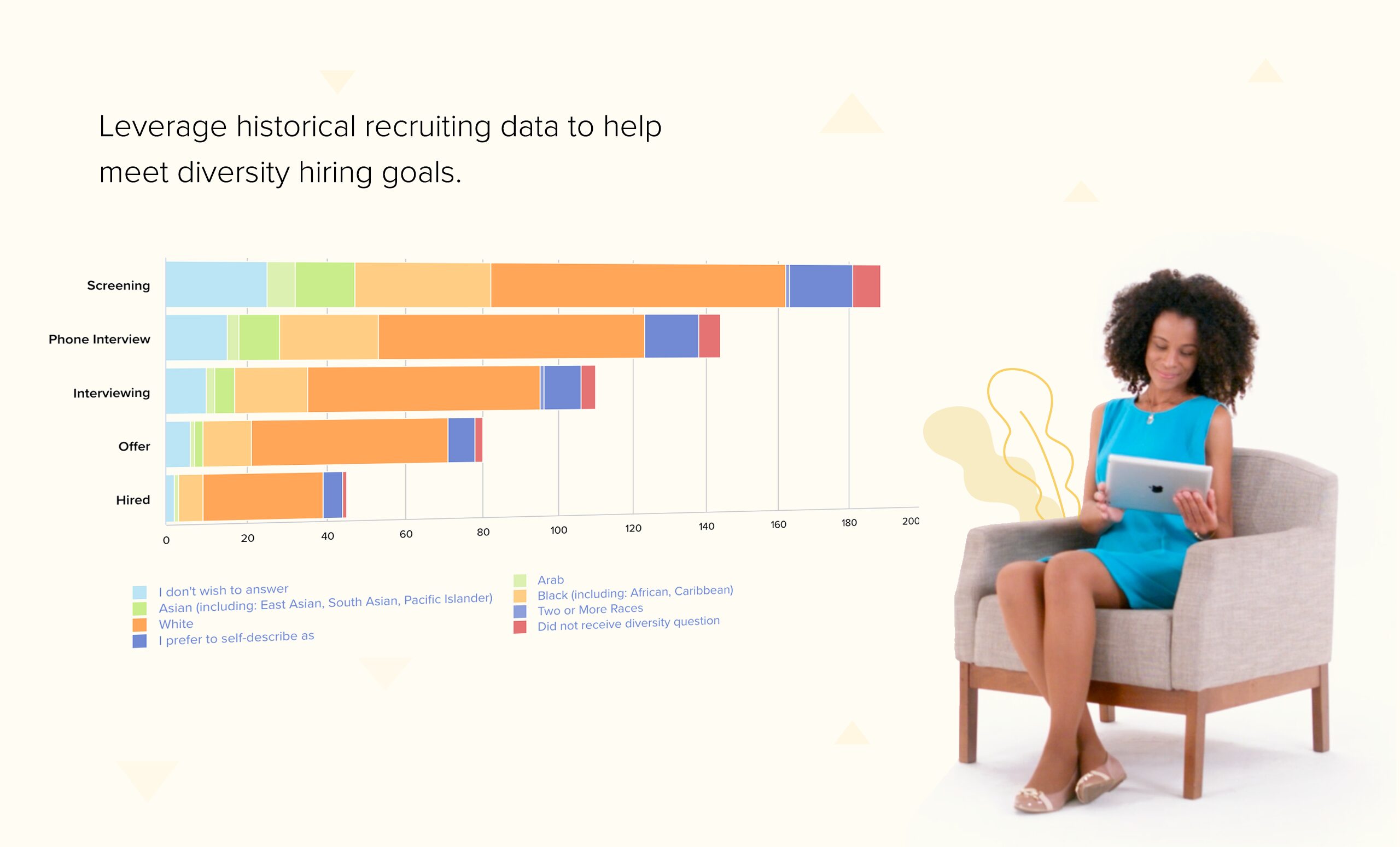
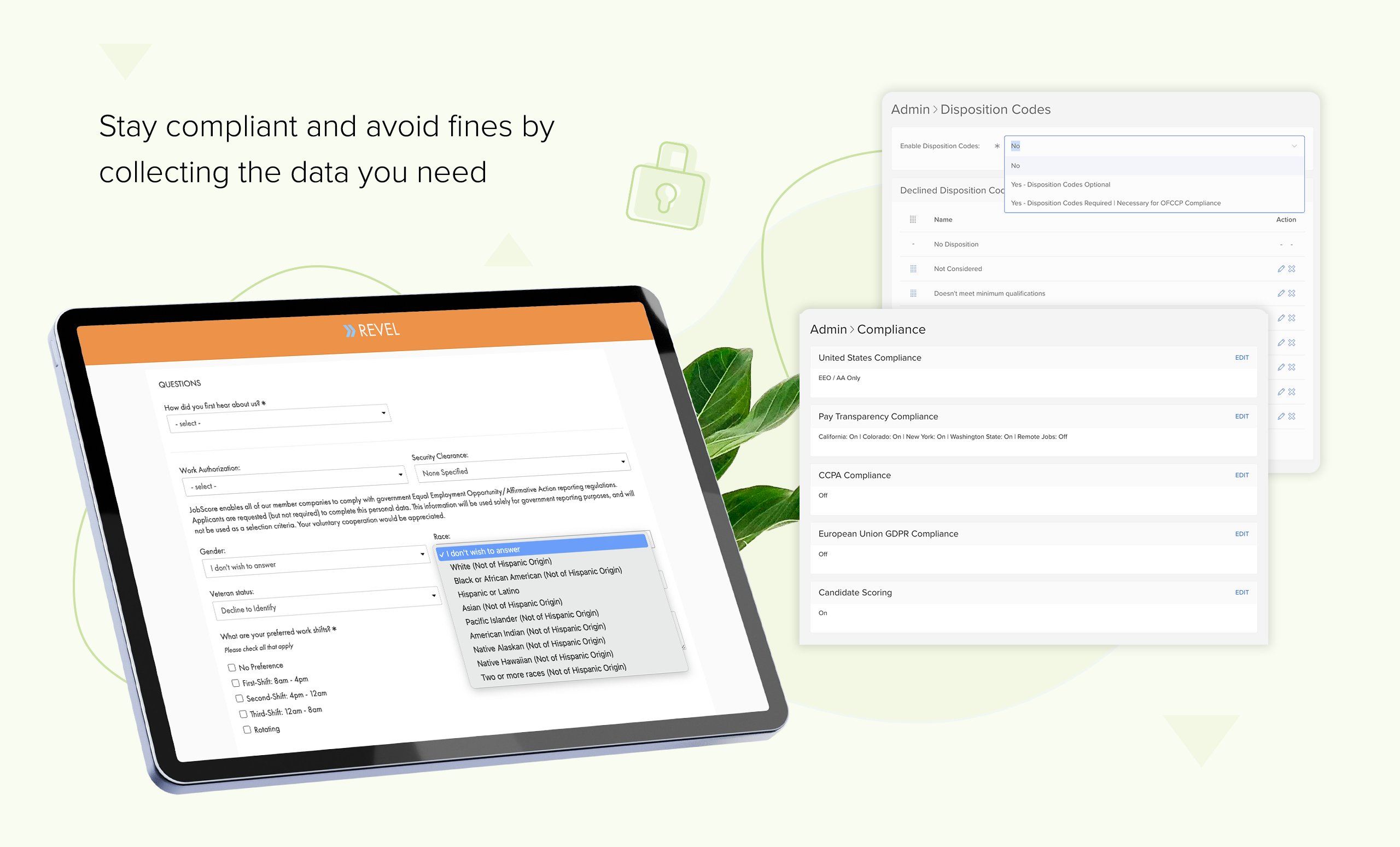
Securely collect and analyze gender, race, disability, and veteran status data. Use diversity questions and insights to meet goals. Promote mobility with an internal job board.
Connect to leading HRIS & onboarding platforms
Integrate JobScore with your preferred HRIS and Onboarding platform. Eliminate data entry and create a seamless hiring experience.
Powerful recruiting features when you need them
If you have recruiting responsibility, leverage powerful features for sourcing, coordinating, full cycle recruiting, and talent acquisition leadership.
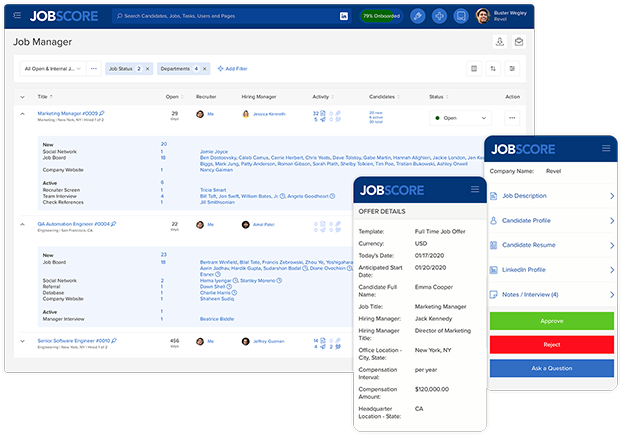
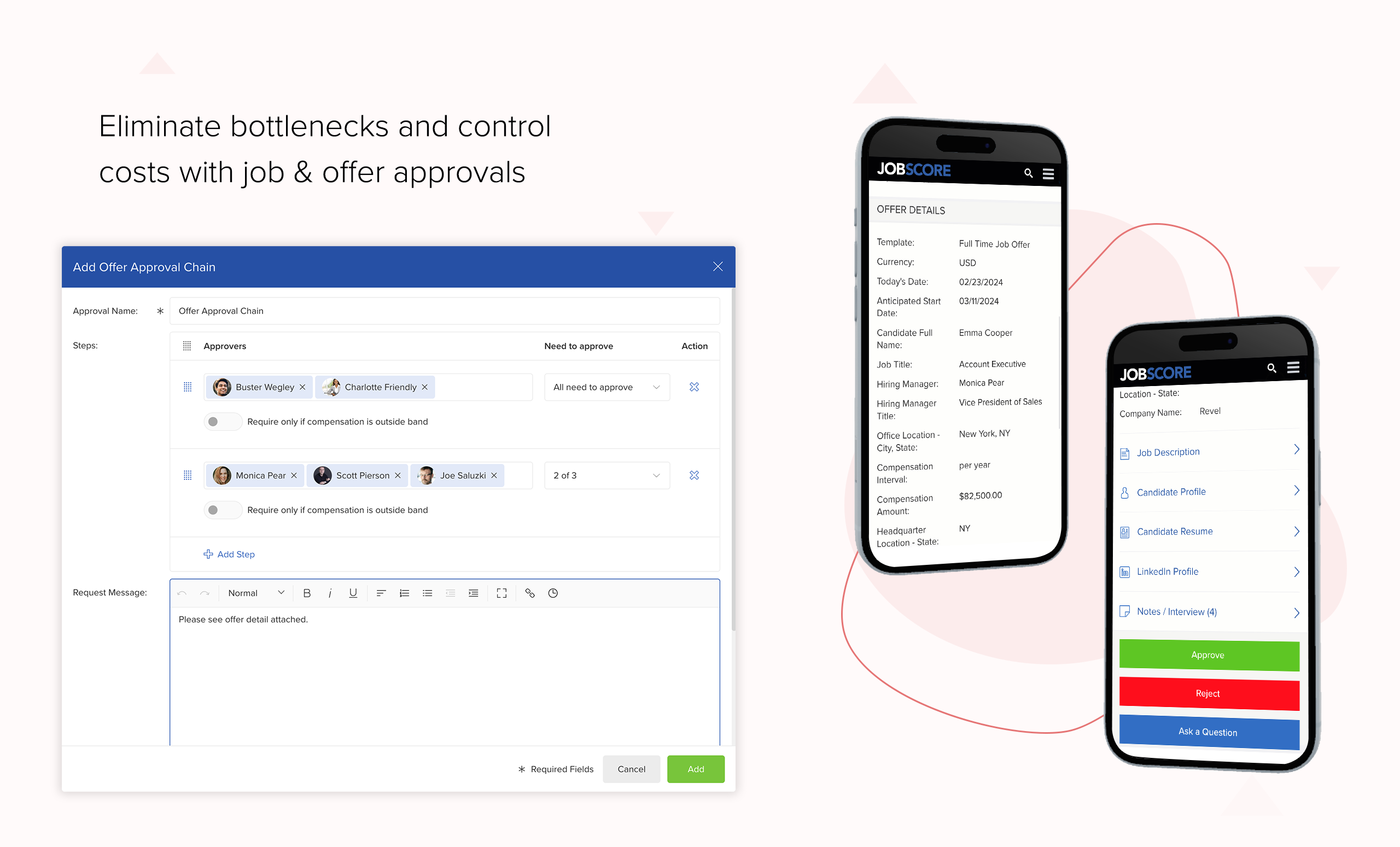
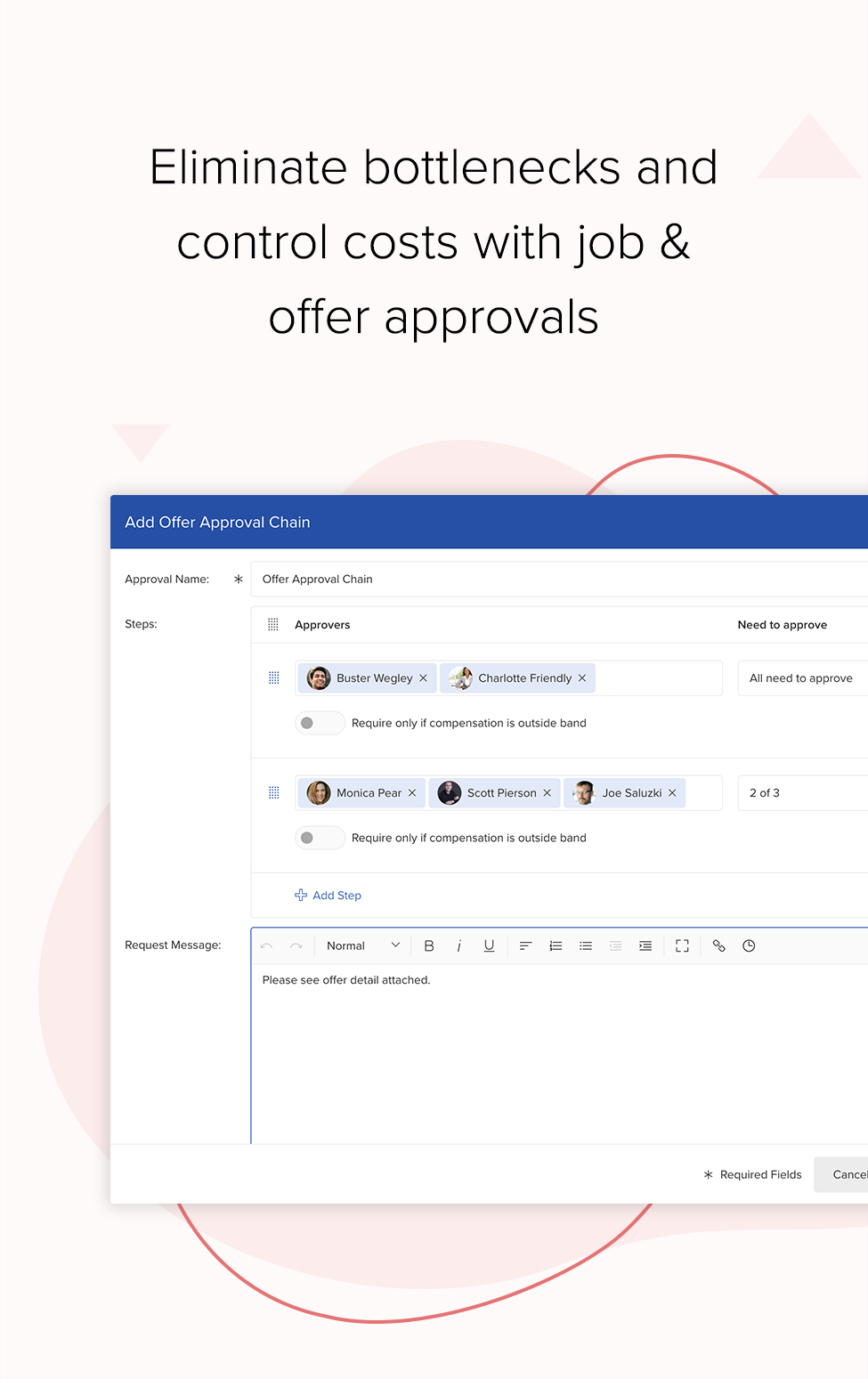
Easy job & offer approvals
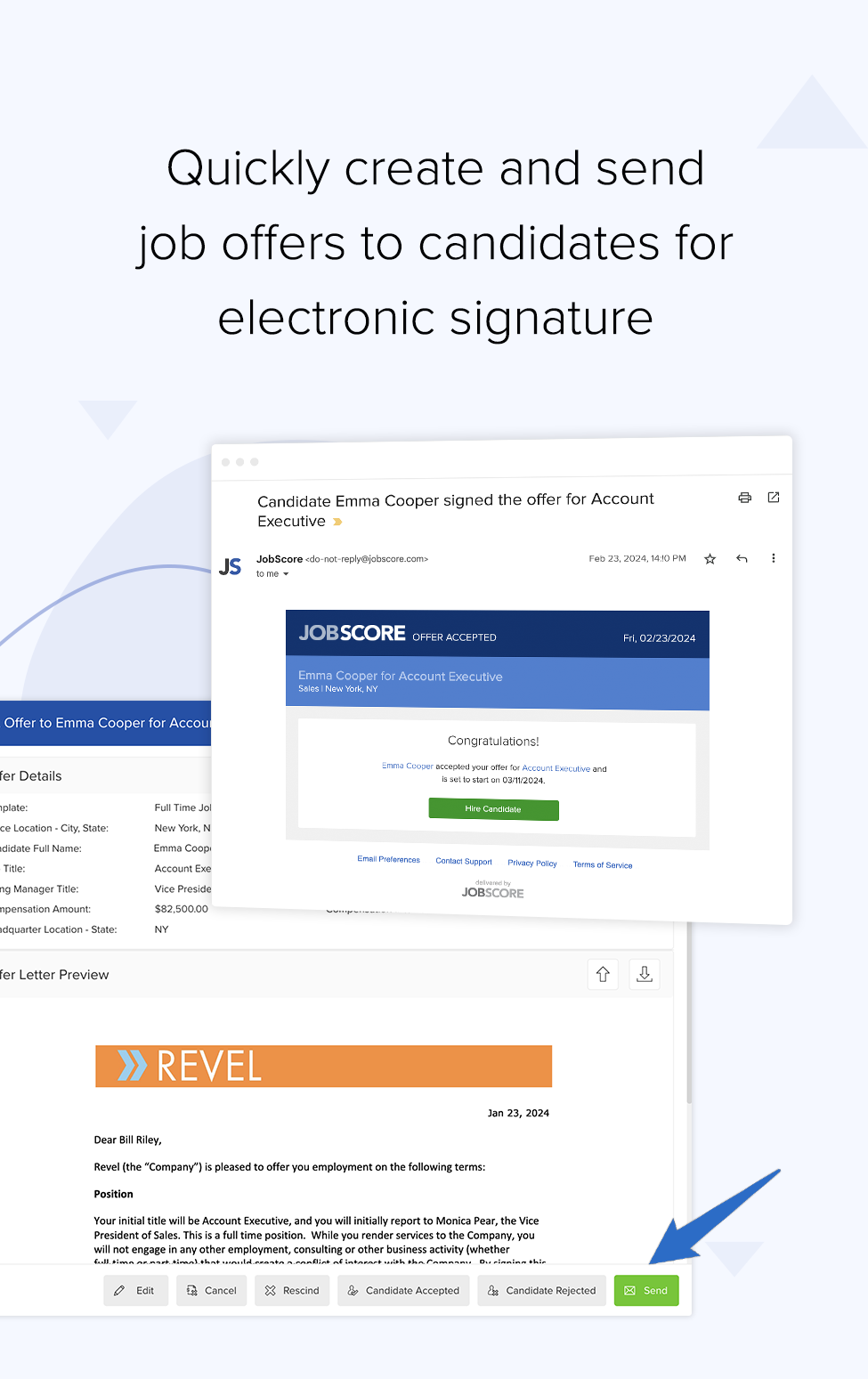
Use powerful, customizable, multi-step, mobile-optimized approval chains to control when jobs can be opened and job offer terms.
Visibility & metrics
Easily see what’s open, how things are going, and whether KPIs are trending up or down.
Never miss a trick
Avoid recruiting bottlenecks by customizing alerts and accessing JobScore from your mobile device.
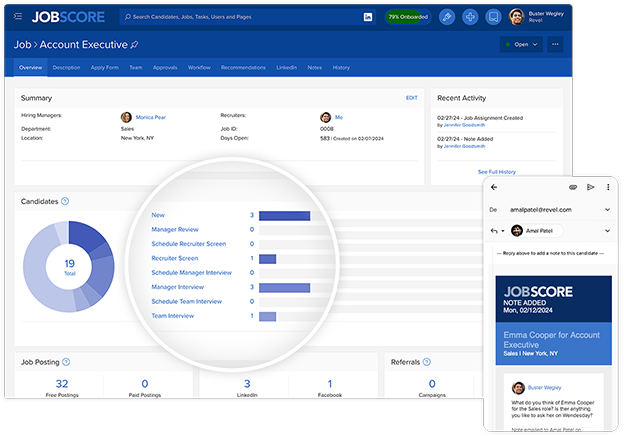
See your pipeline at a glance
Access the real-time information you need about every job and candidate from anywhere.
Your process, your way
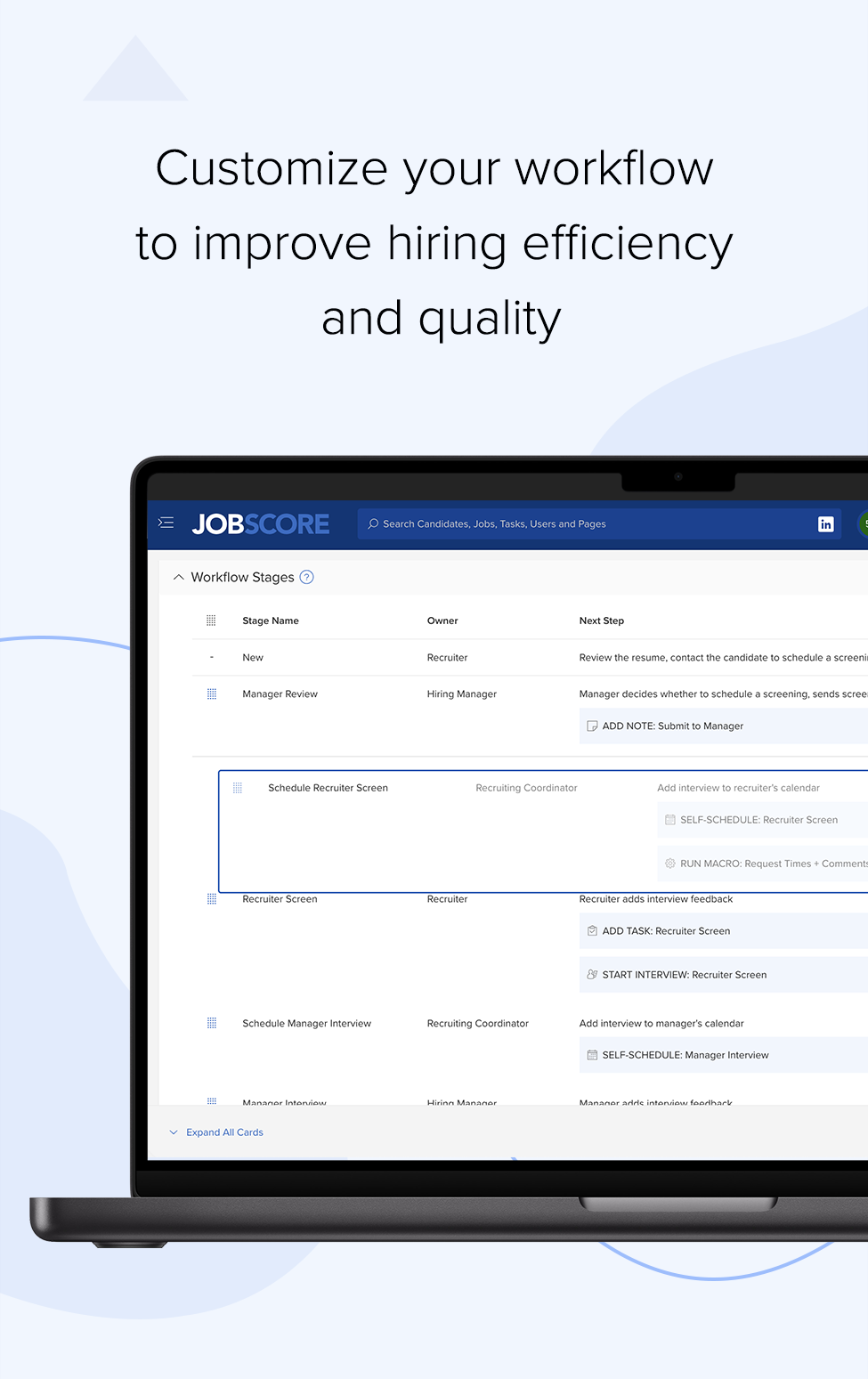
Maximize your chance of hiring top performers by working the way you want, as a team, on a job-by-job basis. Customize workflow steps, hiring team members, forms, interview questions, and more.
Only log in if you want to
If you don’t want to log in over the web or mobile, easily work from your email and JobScore keeps everything in sync.
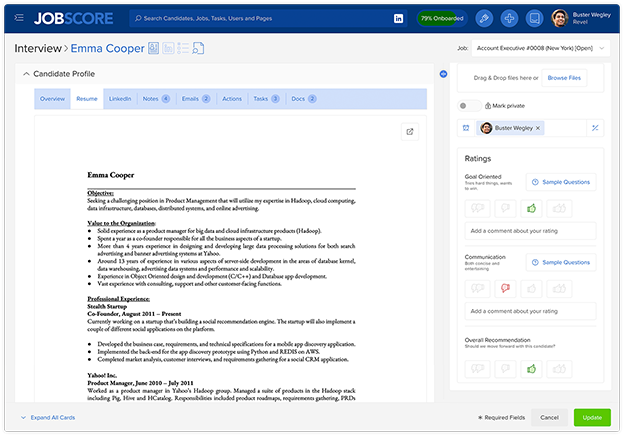
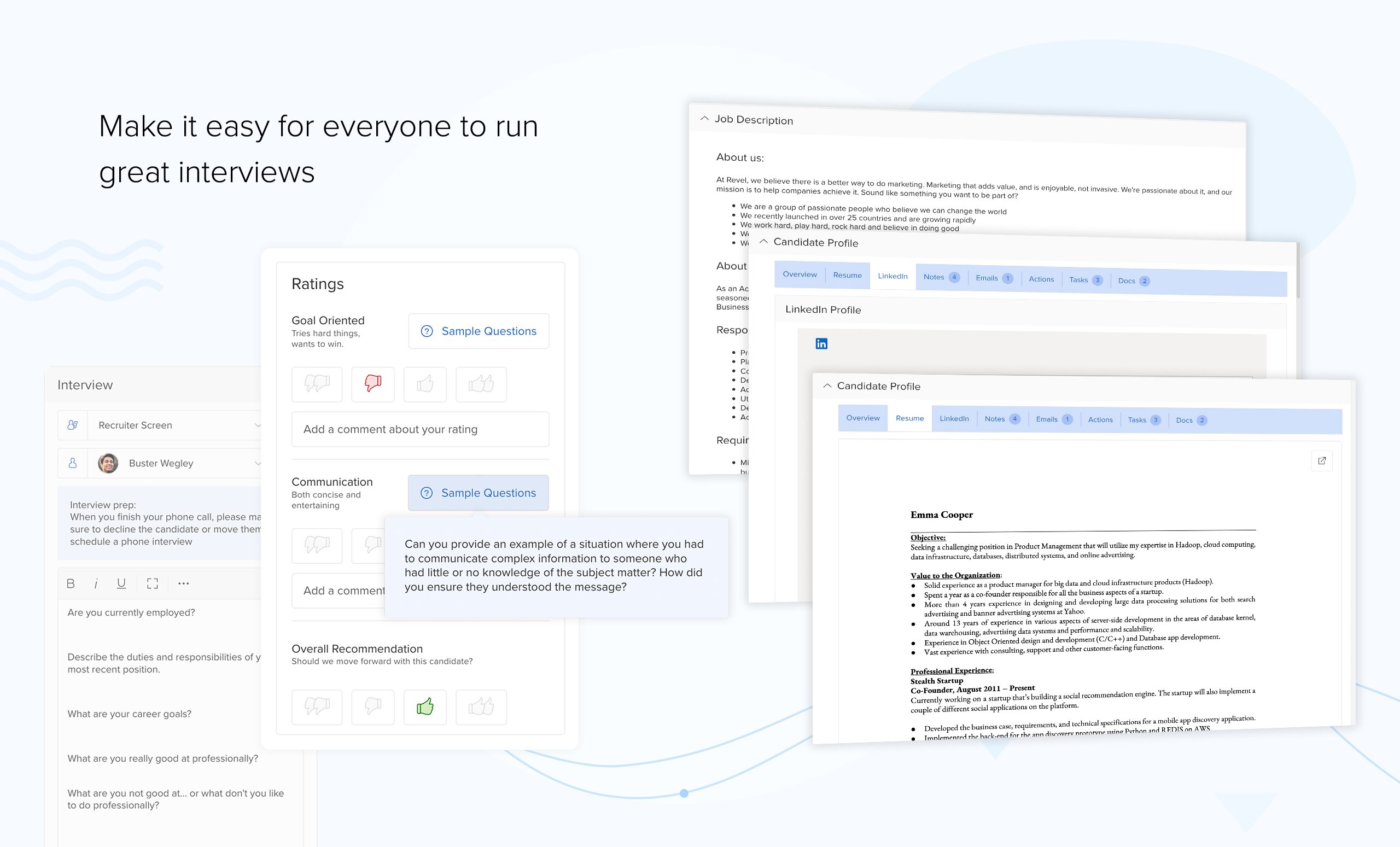
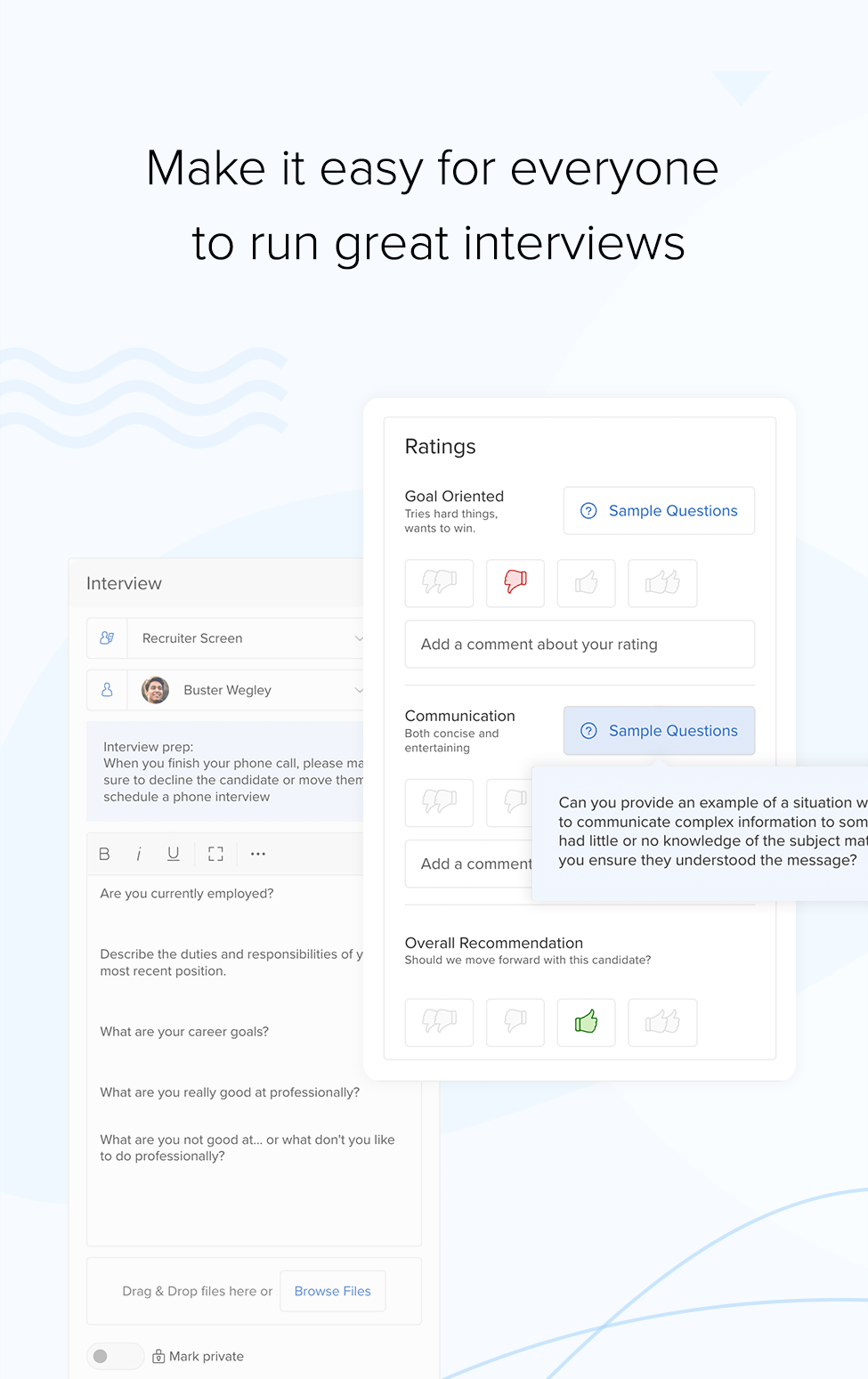
Easily run great interviews
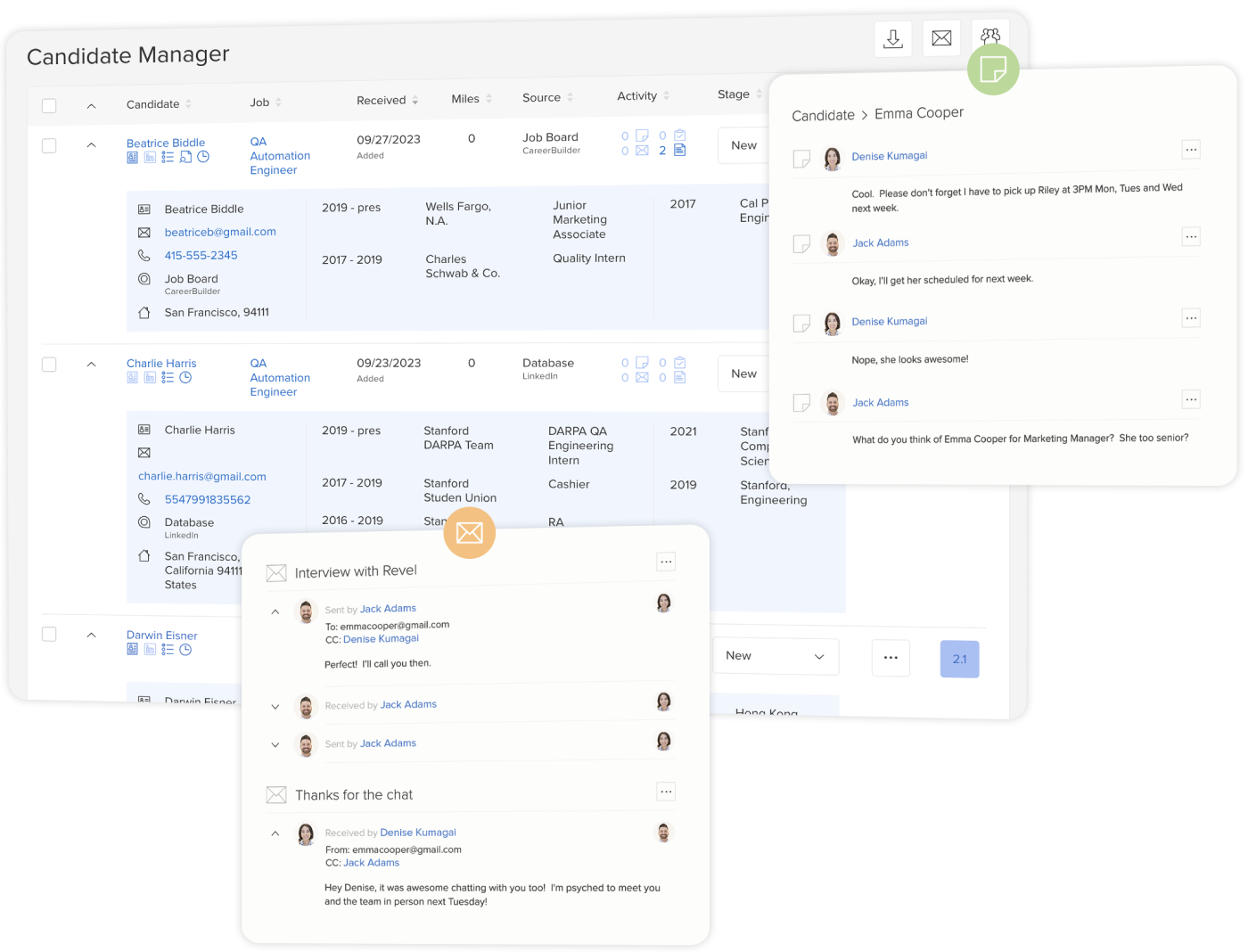
Everything you need on one page: a formatted resume, the job description, video conferencing link, questions, rating criteria, interview panel details, and more.
Share or apply for open jobs
See every open job at your company and either apply yourself or help recruit by sharing jobs on social networks or by email.
Make referrals and track their progress
Refer people for jobs, share what makes them great for a role, and then track how they move through the recruiting process.
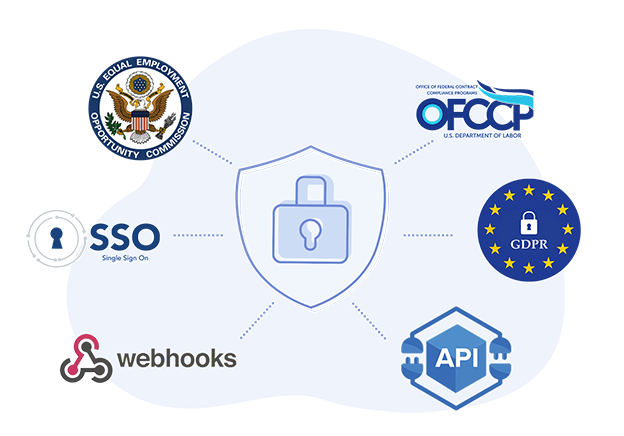
Security & Compliance
JobScore is hosted in the Amazon cloud and is SOC2 Type II compliant. We help our customers meet EEO, OFCCP, GRPR, CCPA, and other compliance regulations.
SSO & Pre-built Integrations
Make it easy for your team to securely log in without a password using Google, Microsoft, OpenID, or SAML. Easily connect email, calendar, conferencing, HRIS platforms, and more.
APIs, Webhooks, and more
Build any integration you need with webhooks, the Hire API, and Zapier. Build custom data visualizations using our business Intelligence connector and your favorite reporting platform.
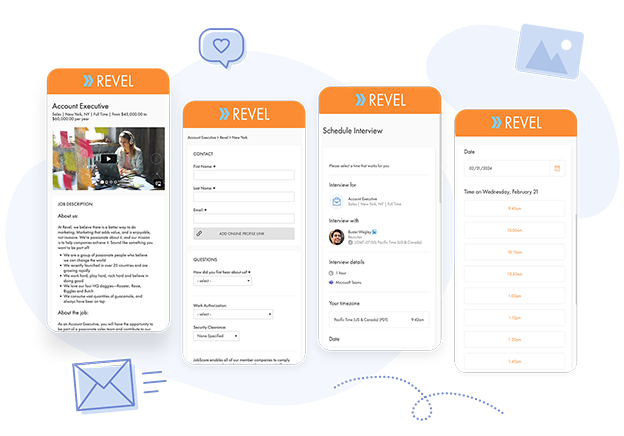
Promote your employment brand
Impress candidates and provide a window into your culture with images, videos, maps, and team profiles. Customize your theme to match your logo and brand.
Craft Impressive Experiences
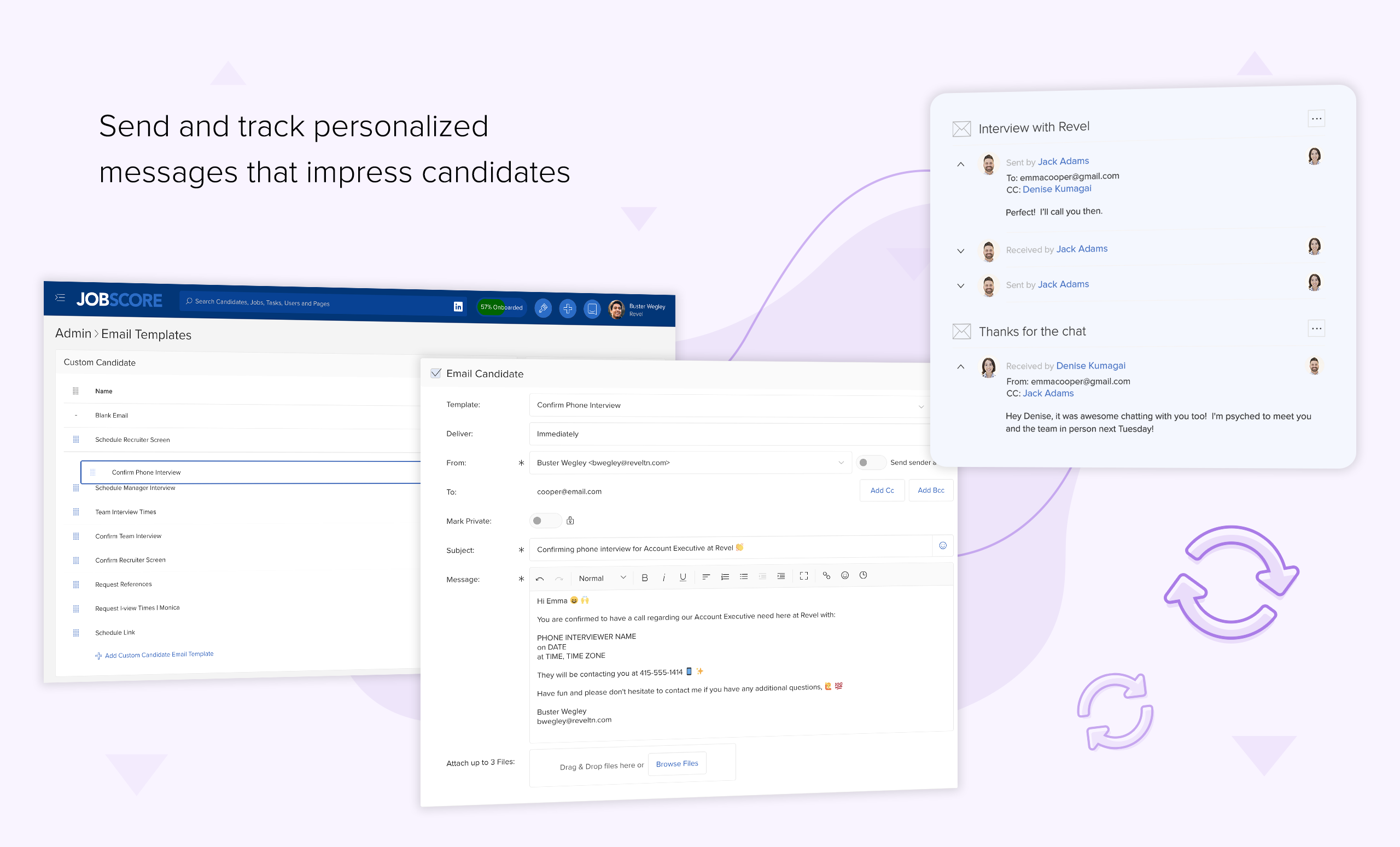
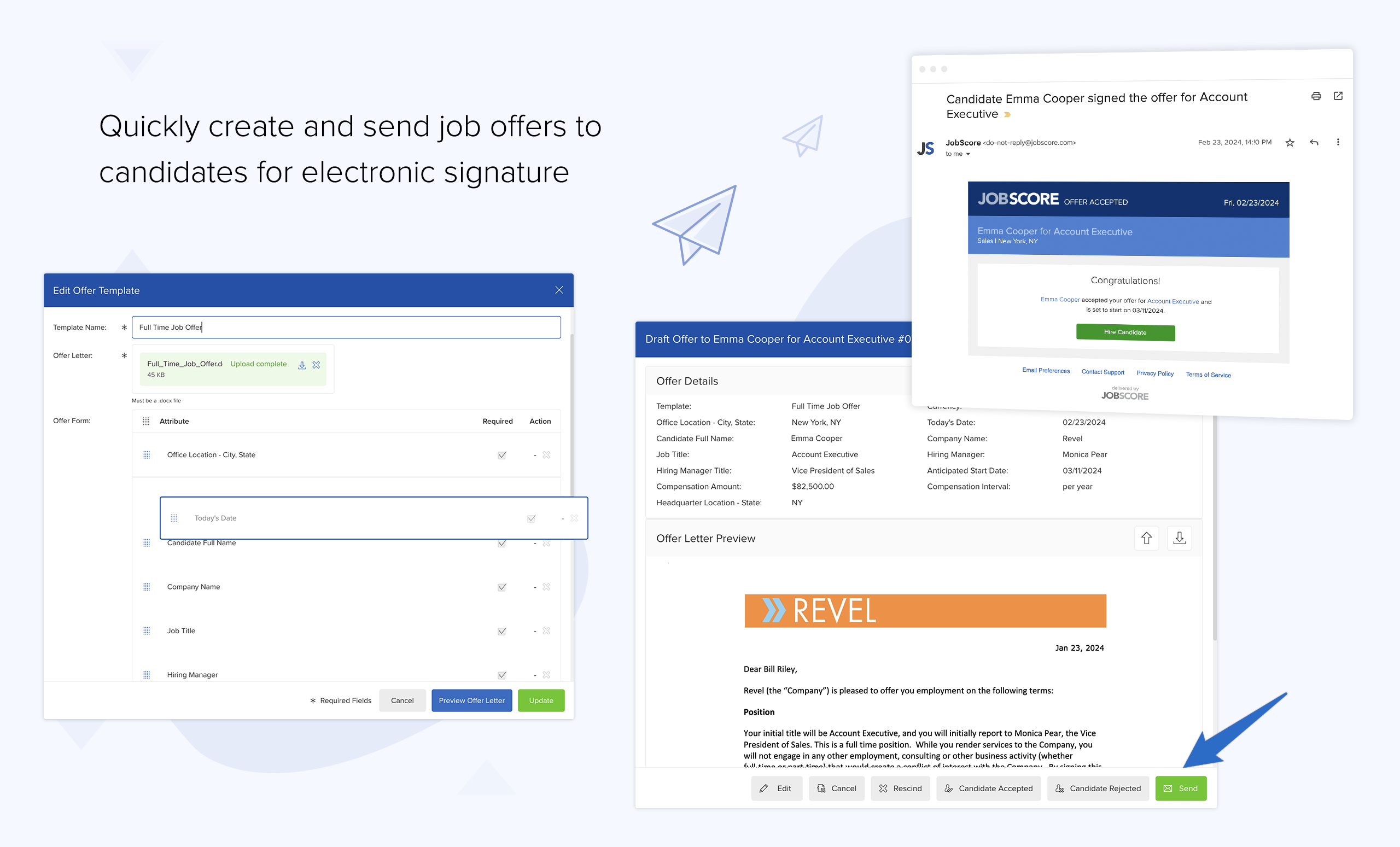
Provide candidates with a modern, impressive experience from start to finish: job descriptions, job application forms, emails, forms, offers, and more.
Be Responsive and Polite
Combine candidate scoring with automatic correspondence tracking, overdue alerts, and email templates to provide timely, polite responses.
A track record you can trust
15+
Years of innovation
150+
Countries served
1,000+
Active employers
15M+
Job applications
JobScore helped power
$15+ Billion in acquisitions.
 acquired by
 acquired by
 acquired by
 acquired by
- acquired by
- acquired by
- acquired by
- acquired by
- acquired by
- acquired by
- acquired by
- acquired by
- acquired by
- acquired by
- acquired by
- acquired by
- acquired by
- acquired by
- acquired by
- acquired by
- acquired by
- acquired by
- acquired by
- acquired by
- acquired by
- acquired by
- acquired by
- acquired by






















































Learn more about our plans
START
For HR professionals and hiring managers
SCALE
For professional recruiters and talent acquisition teams
ENTERPRISE
For high volume, high velocity recruiting needs