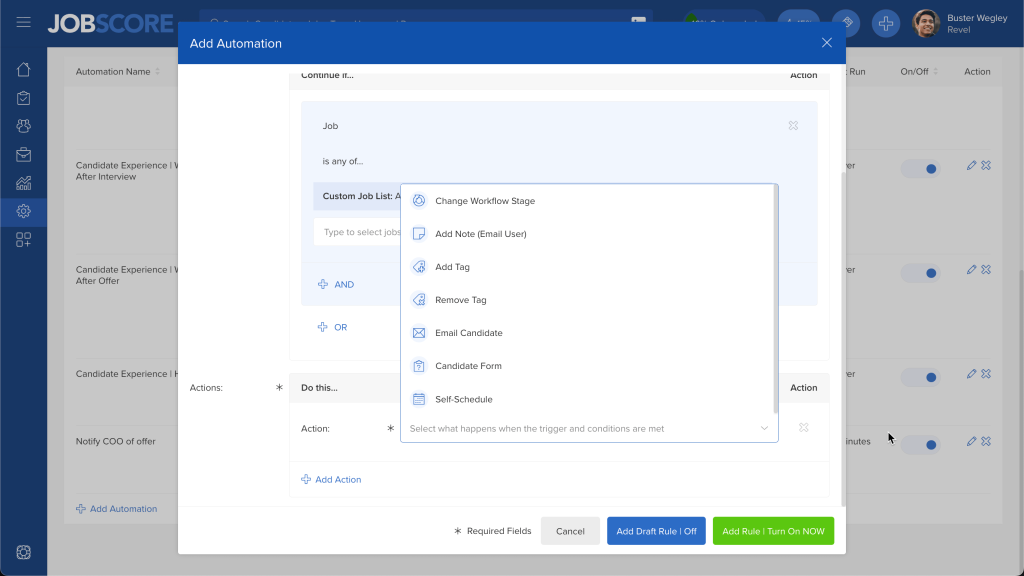
We’ve made JobScore automations more powerful by supporting 3 new actions.
Add Note (Email User) Action
This action adds a note to a candidate’s record using a note template. While adding searchable notes to candidate records is helpful, the real power of this action stems from the “email note to:” attribute of note templates, which allows you to create automations that send email notifications to your co-worker.
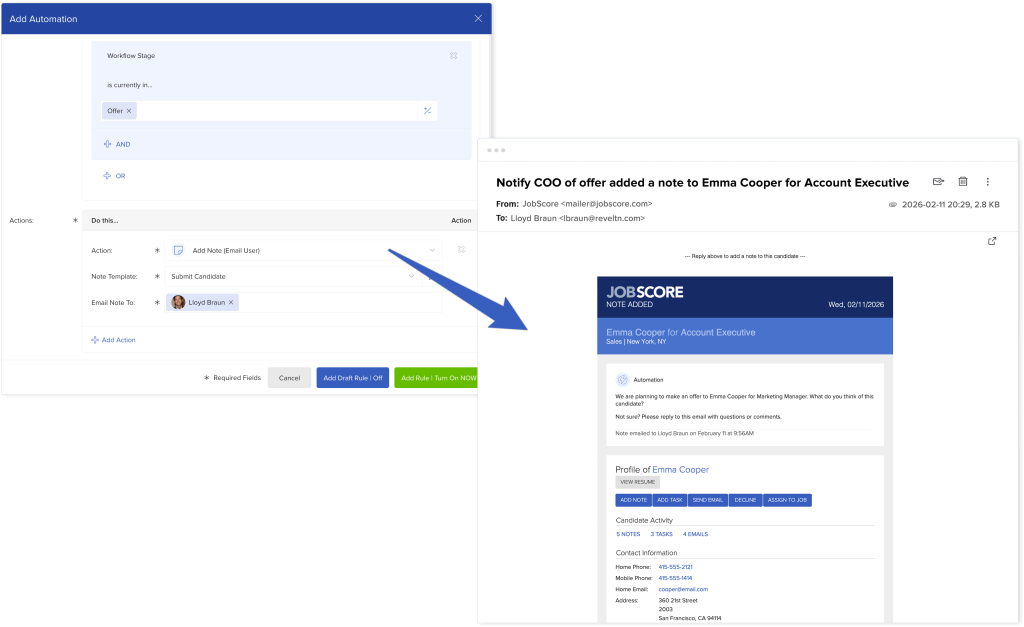
Even better, when you turn on note alerts for a job, users can reply to these email notifications and start discussions that are auto-magically recorded in JobScore.
The add note (email user) action keeps everyone in the loop precisely the way you want.
A great way to try it out is to create an automation that notifies a teammate when candidates are moved into specific workflow stages.
Add Tag & Remove Tag Actions
These 2 actions, unsurprisingly, add and remove tags from candidate records. If you are unfamiliar with tags in JobScore, other systems call them “labels,” “folders,” or “projects.”
Tags are a flexible way to sort and manage candidates, allowing you to group and classify them independent of which job(s) they are considered for. We’ve outlined many, many potential uses in our tags tutorial.
It’s hard to overstate the flexibility and power of tags. Here are a few examples of how you can use them in automation actions:
- When a candidate is moved to the “declined” workflow stage, if they’ve ever been in the “team interview” workflow stage, add the “interviewed” tag… so you can easily see if they’ve interviewed before when reviewing candidates.
- When a candidate is moved to the “recruiter screen” workflow stage, “phone interview” stage, or “team interview” stage, remove all sourcing tags (like pursuing, 1st email, 2nd email, or send Inmail)… because you successfully connected with them and can stop outreach efforts.
Happy hiring!